No subtitles showing, no subtitle option to turn on, or subtitles that appear but don't line up with the dialogue — these look similar from the outside, but they're three distinct problems with three different fixes. This guide walks through how to tell which one you're dealing with.
This is a different issue from sound and picture drifting out of time with each other. If the audio and video themselves are mistimed, see audio and video out of sync instead — that's a separate symptom with separate causes.
Why Subtitles May Be Missing
Before assuming your player is doing something wrong, it's worth confirming the content actually has a subtitle track to begin with. Not every live channel or on-demand title includes one — subtitle availability is set by whoever provides the content, not by your player or device, and a player can't display a subtitle track that was never included in the stream.
If subtitles have worked on other channels or titles but not this one, that's a reasonable sign the content itself doesn't include them, rather than something being broken in your setup.
Check Whether the Content Provides a Subtitle Track
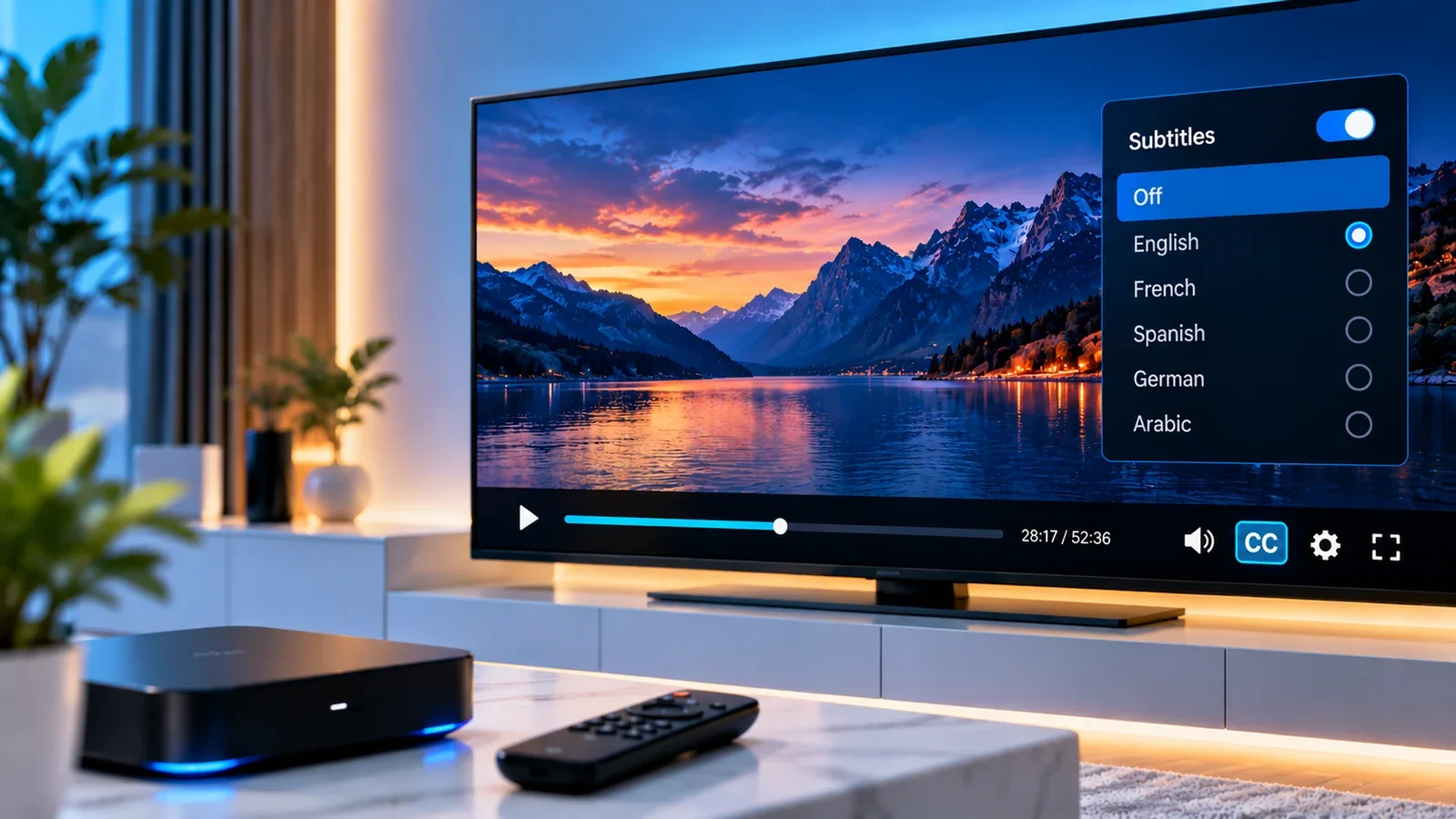
A quick way to separate "not available" from "available but not showing" is to check your player's own subtitle or closed-caption menu while the content is playing:
- If the menu shows one or more subtitle/language options, a track exists and the issue is more likely about turning it on or picking the right one.
- If the menu is empty, grayed out, or doesn't offer any option at all for that specific title or channel, the content most likely doesn't include a subtitle track, and no setting on your end will add one.
Exact menu names and icons vary by player — look for wording like "Subtitles," "CC," "Captions," or a similar icon, usually accessible from the on-screen playback controls.
Turn On or Change Subtitles in Your Player
If a subtitle track exists but isn't showing, it's usually because it's simply switched off, or a different track (such as a different language) is selected by default.
- Open the subtitle/CC menu during playback and confirm a track is actively selected, not just available.
- If more than one subtitle track is listed — often by language — try switching between them, since the wrong one selected by default can look identical to "no subtitles" if it's not the language you expect.
- Some players apply a subtitle setting per channel or title rather than as a global default, so a setting that worked on one piece of content may not automatically carry over to the next.
Menu locations differ between apps and devices, so check your specific player's current settings screen rather than assuming a universal path — this guide can't promise a single menu location that applies to every app.
Subtitle Track and Format Compatibility
Subtitle tracks come in different technical formats, and not every player supports every format equally well. A track that displays correctly in one player can fail to appear, or display incorrectly, in another, even for the exact same piece of content.
This guide can't promise that a specific player supports a specific subtitle format, since that depends entirely on the app itself and can change between versions. If subtitles consistently fail to appear in one player but the same content plays normally (including its subtitles) in a different compatible player, that's a reasonably strong sign the first player has a format-compatibility limitation rather than the content lacking subtitles altogether.
What to Do When Subtitles Are Out of Sync
If subtitles do appear but the timing is off — consistently early or late relative to the dialogue — a few things are worth checking:
- An in-player subtitle delay or offset setting, if your player offers one, similar in concept to an audio-delay setting. Not every player includes this option, and where it exists, the right amount to adjust depends on your specific content and isn't a fixed universal number.
- Whether the drift is constant or growing. A fixed, unchanging offset throughout playback points toward a timing mismatch baked into the subtitle track itself. A gap that grows over time points more toward a broader playback timing issue, which overlaps with causes covered in audio and video out of sync.
- Restarting the title or channel. Reloading from the start sometimes resolves a subtitle track that began out of alignment, especially if the drift was present from the very beginning rather than developing partway through.
Compare Another Title or Supported Player
As with most playback symptoms, comparison narrows things down faster than troubleshooting one piece of content in isolation:
- Try a different channel or title. If subtitles work correctly elsewhere, the problem is more likely specific to that one piece of content's subtitle track than to your device or player setup generally.
- Try a second compatible player, if you have one. If the same content's subtitles display correctly in a different player, the first player's subtitle handling — rather than the content — is the more likely cause.
When the Problem Is in the Source Content
If a subtitle track is genuinely missing from a specific title or channel, or its timing is off in every player you try, the most likely explanation is the subtitle data as supplied by the content source itself. That isn't something you can fix from your device, and no player setting will manufacture a subtitle track that wasn't included or correct it if it was authored with its own internal timing offset.
If this pattern holds consistently for specific content across more than one player and device, that's worth raising with your provider, since they're the only party in a position to check the source content directly.
Summary
Missing subtitles usually come down to one of three distinct situations: the content never included a subtitle track, a track exists but isn't selected or turned on, or a track is present but mistimed. Check your player's own subtitle menu first to see whether a track exists at all, try switching tracks if more than one is listed, and compare another title or player before concluding the problem is in the source content itself.