Audio and video drifting out of sync — where the picture and sound no longer line up — is a different problem from buffering or a frozen stream, and it usually needs a different fix. This guide covers the realistic causes and practical steps to narrow down where the problem actually is.
What Causes Audio and Video Sync Issues
There's no single cause behind sync drift. In practice, it tends to trace back to one of a few areas: the player app itself (how it decodes and times audio versus video), the playback device (hardware vs. software audio decoding behaves differently), the network connection (inconsistent throughput can cause a player to fall behind on one stream while catching up on the other), or the source stream itself, which may already carry a timing offset no local adjustment can fully correct. None of these is universally "the" cause — the steps below are about isolating which one applies to your situation.
Quick Fixes to Try First
Before assuming anything is seriously wrong, try the simplest resets first:
- Pause for a few seconds, then resume. This lets the player's buffer clear and often re-establishes sync from scratch.
- Switch to a different channel and back. Reloading the stream forces the player to start fresh rather than carrying forward an accumulated drift.
- Restart the app completely (not just minimize it), and restart the device if the app restart doesn't help.
These cost nothing to try and resolve a meaningful share of sync complaints without needing to change any setting.
Adjusting Audio Offset in Your Player
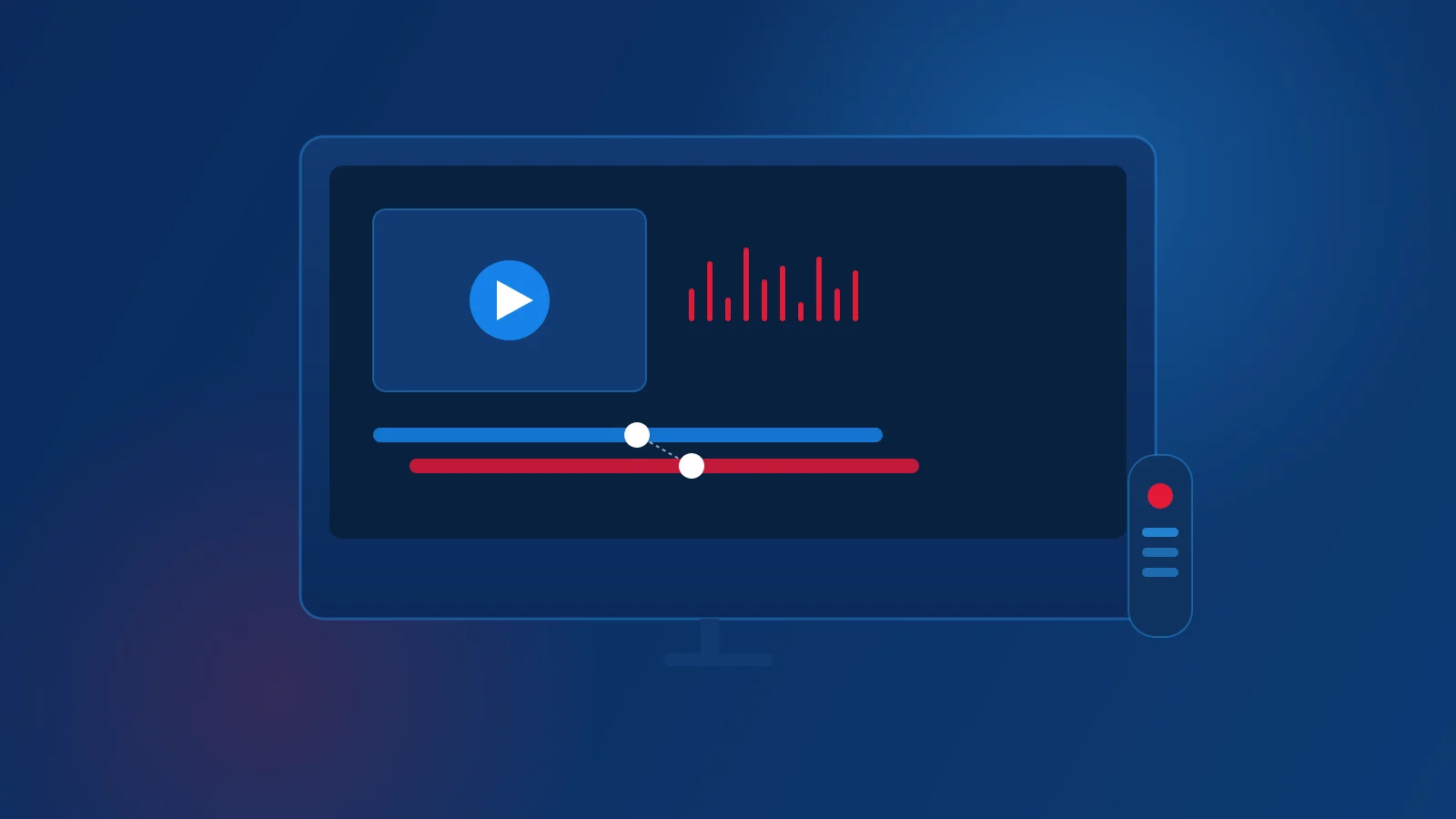
Many compatible player apps include a manual audio-delay or audio-offset setting, usually somewhere in the playback or audio menu — the exact location and available range varies by app and can change between versions, so check your specific player's current settings rather than assuming a fixed menu path. If a small, consistent drift is present on every channel, nudging this offset in one direction and checking the result is a reasonable next step before assuming a deeper problem.
If adjusting the offset fixes sync on one channel but not others, that's a sign the drift is coming from the individual streams rather than a single setting you can fix once and forget.
Isolating the Cause: Device, Player, or Source
If sync issues persist, isolate which part of the chain is responsible: test the same channel on a different device — if the problem disappears, it points toward the original device rather than the source; test a different compatible player app on the same device, if one is available, to separate a player-specific issue from a device-wide one; and check whether only specific channels are affected, or all of them — a handful of affected channels points toward those particular streams, while a problem affecting everything equally points toward the device or player. No single test is conclusive alone, but narrowing it down this way beats guessing.
Bluetooth Audio and Sync
If you're listening through a Bluetooth speaker, soundbar, or headphones, some amount of audio delay is expected — wireless audio transmission introduces latency that a wired connection doesn't have. Before troubleshooting further, it's worth testing with your TV's built-in speakers or a wired audio connection to confirm whether Bluetooth itself is contributing to what you're seeing.
Conclusion
Audio and video sync problems are worth treating separately from buffering or connection issues, since the causes and fixes don't overlap much. Start with the quick resets, try an in-app audio offset if the drift is small and consistent, and isolate the cause by testing another device, player, or channel before assuming the worst. For other playback issues, see our full troubleshooting guide, and for a refresher on what a player is actually responsible for, see Xtream IPTV Player Explained.