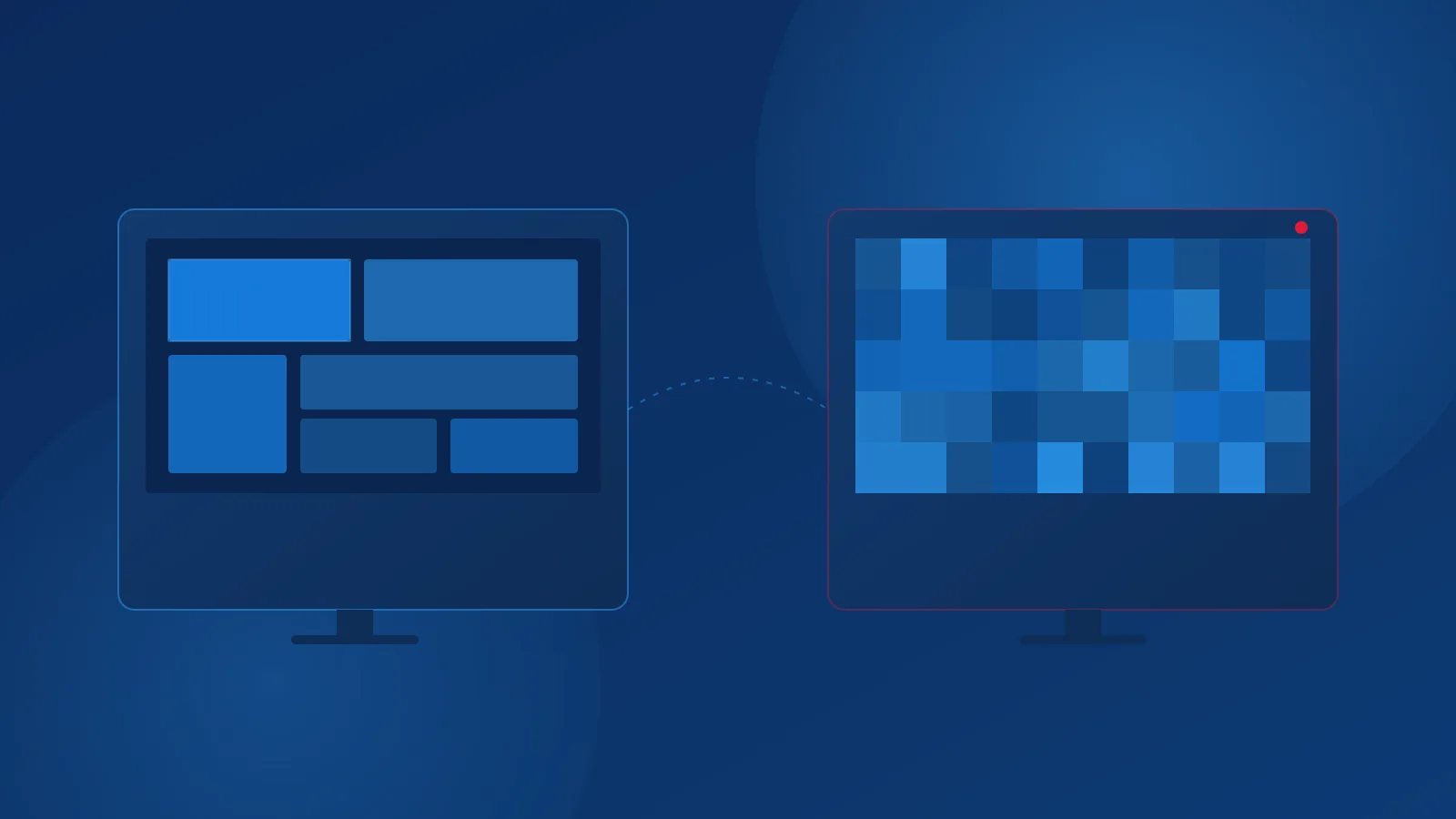
A stream that loads and plays, but looks blurry, blocky, or softer than you expected, is a different problem from one that buffers or won't connect at all. The picture itself is the symptom, and a handful of distinct causes can produce it — some on your end, some on the source's. This guide walks through how to tell them apart and what's worth checking before assuming the worst.
Why Does IPTV Picture Quality Look Bad?
A few different things can all show up as "the picture looks bad," and they don't have the same fix:
- The source stream itself is low-resolution or heavily compressed. No amount of adjusting your device will add detail that was never in the stream.
- The network connection can't keep up, so the player or the source drops to a lower-quality version of the stream, or the data arrives with errors.
- The device can't decode the stream properly, producing artifacts even though the incoming data is fine.
- A display or player setting is scaling, sharpening, or processing the image in a way that looks worse, not better.
The rest of this guide helps you narrow down which of these you're actually looking at.
Blurry vs. Pixelated vs. Low-Resolution Video
These three get used interchangeably, but they look different and point to different causes:
- Blurry usually means soft, out-of-focus detail across the whole picture. This is often a genuinely low-resolution or heavily compressed source, or a display upscaling a smaller image and smoothing it in the process.
- Pixelated means visible square blocks, usually appearing suddenly in motion or busy scenes rather than evenly across the picture. Brief, blocky breakup like this is a classic sign of data loss in transit — packets arriving late, out of order, or not at all — rather than a resolution problem.
- Low-resolution is the picture being genuinely smaller or less detailed than you expect, consistently, not just during motion. That points back to the source stream's actual encoded resolution, not a transient network issue.
If the problem comes and goes with motion or network load, think network and decoding first. If it's constant across everything you watch, think source and settings first.
Check the Source Stream Quality
Every stream is encoded at a particular resolution and bitrate by whoever provides it, and a player can't improve on that. Before changing any setting on your end:
- Try a different channel or title. If the picture looks noticeably better elsewhere, the first one is likely encoded at a lower quality, not a problem with your setup.
- Check whether your plan or the specific content is advertised as HD, FHD, or similar. Plenty of legitimate linear channels are still distributed in standard definition, and no setup change will make a standard-definition source look like a high-resolution one.
- If a channel that used to look sharp now looks consistently soft, the source may have changed on the provider's end, which is worth raising with them directly.
Check Your Network Connection
Higher-resolution streams generally carry more data than lower-resolution ones, and a connection that can't sustain that data rate will produce buffering, dropped quality, or the blocky breakup described above — though no single speed number can guarantee smooth playback for every stream, since encoding efficiency varies.
- Check your Wi-Fi signal strength, or use a wired connection where your device supports it.
- Rule out other devices on the same network competing for bandwidth, especially during the exact times you notice the problem.
- If your player or provider shows a connection or quality indicator, check it during a bad moment rather than only at the start of playback.
This overlaps with connection troubleshooting in general — if buffering and freezing are the main symptom rather than the picture itself looking wrong, see the full troubleshooting guide for connection-specific steps.
Check Your Player and Device
The same incoming stream can look different depending on what's decoding and displaying it:
- Hardware vs. software decoding. Some players let you choose which one handles video decoding. If one produces more artifacts than the other, switching is worth testing — change one setting at a time.
- An older or lower-powered device may struggle to decode a high-bitrate stream smoothly even on a good connection, producing artifacts that look like a network problem but aren't.
- An outdated player app can have decoding or rendering bugs a newer version has already fixed. Check for a pending update.
IPTV 4K: What It Actually Means
"4K" describes the resolution of the source stream, not a property of your TV, your player, or your subscription on its own. A 4K-capable display does not make a lower-resolution stream sharper — it just means the display is capable of showing 4K content if it receives it.
For a stream to actually look like 4K, several things all have to line up:
- The source itself has to be encoded in 4K. Not every channel or title that's technically available is distributed at that resolution.
- Your connection has to sustain the higher data rate that a 4K stream requires — generally considerably more than an HD stream, though exact figures depend on the specific encoding.
- Your device has to be able to decode 4K, which depends on its hardware, not just the player app installed on it.
- The player itself has to support rendering 4K output.
If any one of these isn't in place, you'll get a lower-resolution picture even though your display is fully capable of 4K. That's normal and expected — it's not usually evidence that something is broken.
Check Resolution, Frame Rate, and Playback Settings
A few settings are worth checking directly, separate from the causes above:
- Output resolution. If your device or player has a manual output resolution setting, confirm it matches what your display actually supports, rather than being set lower by default.
- Frame rate mismatches can show up as subtle judder sometimes mistaken for a resolution problem. If your device can match frame rate automatically, check that it's enabled.
- Display picture-mode settings, such as a TV's motion smoothing or sharpening, can make a stream look worse rather than better. These are separate from anything your player or provider controls, and are worth testing with "off" or "standard" as a baseline.
When the Problem May Be Source-Side
Some signs point more toward the provider's stream than anything in your setup:
- The same channel or title looks the same way on more than one device, on more than one network.
- The quality only changed after no changes on your end — no new device, no new network, no app update.
- Other channels or titles on the exact same setup look fine, isolating the problem to specific content rather than your whole connection.
If that pattern holds, the most useful thing to do is describe it precisely to your provider — which channel or title, what the picture actually looks like, and what you've already ruled out — rather than assuming a setting on your device will fix something that isn't happening on your device.
A Simple IPTV Picture-Quality Troubleshooting Checklist
- Try a different channel or title. Does the problem follow, or stay with the one you started on?
- Is the issue constant, or does it come and go with motion or network load?
- Check your connection — signal strength, wired vs. wireless, other devices using bandwidth.
- Test hardware vs. software decoding, if your player offers the option.
- Check your device and player app for a pending update.
- Confirm your output resolution setting matches your display.
- Reset your display's picture mode to a standard or default setting as a baseline.
- Test the same content on a second device, if you have one.
When to Stop Troubleshooting
If you've worked through the checklist and the problem is isolated to specific content, consistent across more than one device, and didn't follow any change on your end, further adjusting your own settings is unlikely to help. The most useful next step is contacting your provider with the specifics you've gathered, rather than continuing to change things on your side.
Related Reading
Picture-quality problems are a different symptom from buffering, login errors, or audio issues. If the stream is freezing or disconnecting rather than just looking wrong, see the full troubleshooting guide. If sound and picture are out of time with each other, see audio and video out of sync. Setting up a playlist for the first time? See how to add an M3U playlist.
Summary
Blurry, pixelated, and low-resolution are different symptoms with different likely causes — compression and source resolution, network data loss, and device decoding, respectively. Work through the source, the network, and the device in that order, and treat 4K as a chain that depends on the source, the connection, and the device all lining up, not a single setting. If the problem follows specific content across more than one device and network, it's most efficiently resolved by your provider.