An M3U playlist is one of the two common ways a compatible player can be connected to a service. If your provider gave you a single web link instead of a server address with a username and password, this is the setup you're working with. This guide explains what that link is, how to add it to a player, and what to check when it fails.
Only use a playlist or link that was supplied to you by your own provider or content source. The steps below assume you already have one.
What Is an M3U Playlist?
M3U is a plain-text playlist format. A file in this format is a list of entries, and each entry usually contains a display name and the address of a stream. A player reads the file from top to bottom and builds a channel list from it.
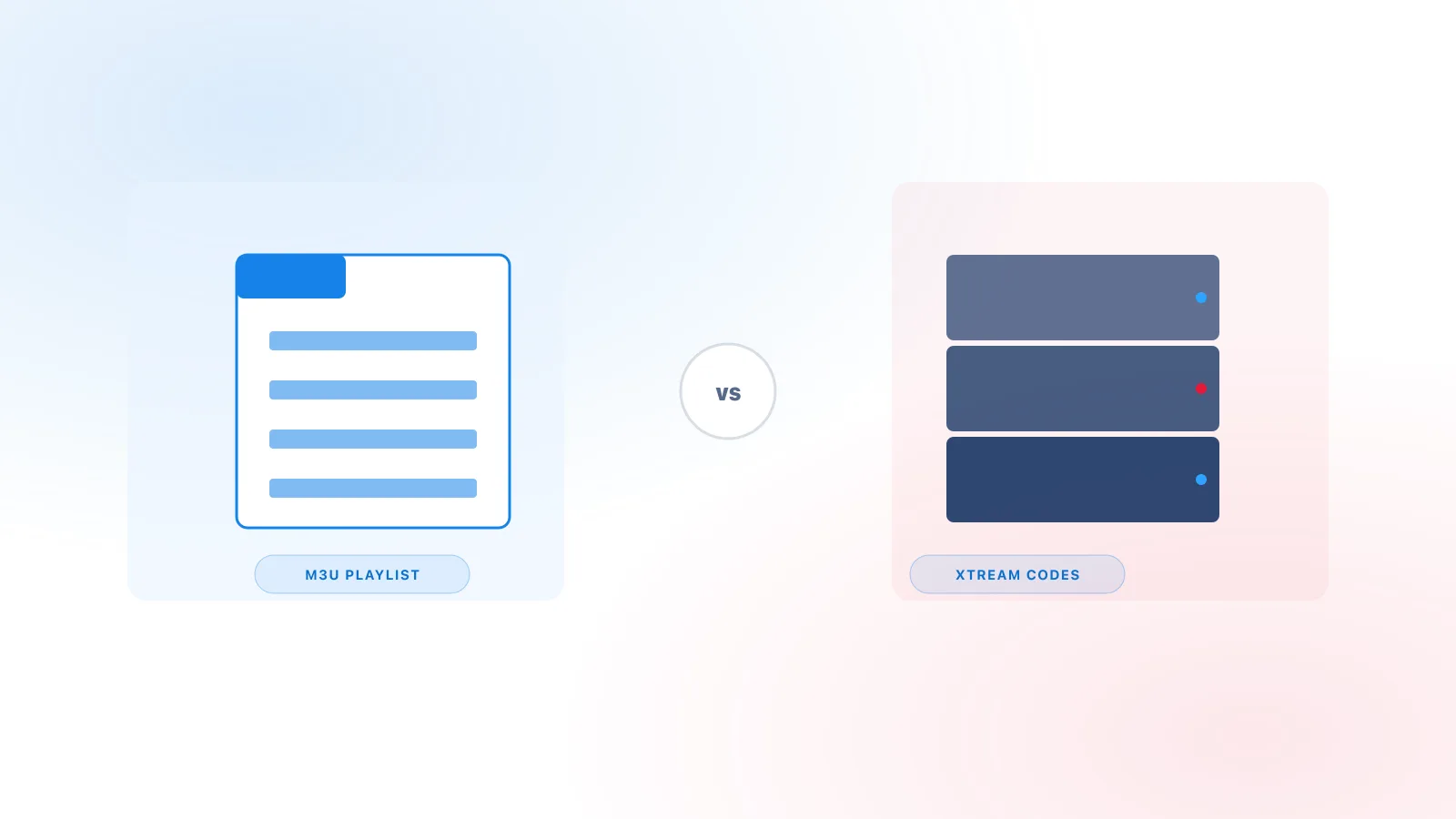
The file itself does not contain any video. It only points to where the video is. It also does not say whether the streams it points to are authorized, which depends on whoever supplies the file. For a deeper comparison with the other common connection method, see M3U vs Xtream Codes.
What Is an M3U URL?
An M3U URL is a web address that returns an M3U playlist when your player requests it. Instead of a file stored on your device, the player fetches the list over the internet, usually each time it refreshes.
Providers sometimes include extra characters at the end of the address, such as a token or parameters that identify your account. Those characters are part of the link. Shortening or editing the address often causes it to fail, so copy it exactly.
Treat a playlist link that identifies your account like a password. Don't post it publicly or share it with people who are not part of your own setup.
Where a Legitimate M3U URL Comes From
A legitimate playlist link normally comes from one of these places:
- A welcome or setup message from your provider
- Your account page or customer portal with your provider
- A setup document that your provider sent with your access details
If you can't identify where a link came from, don't use it. Lists of free or public playlists are not a safe or appropriate source for a setup like this, and this guide does not cover them.
Common Field Names
Player apps label these fields differently. You may see:
- Playlist URL or M3U URL: the web address that returns the playlist
- Playlist name or Name: a label you choose so you can recognize the playlist later
- File or Local file: an option to load a playlist file from your device, where supported
- EPG URL or XMLTV URL: a separate guide source, where the player asks for one
Field labels, menu locations, and available options depend on the player and the device. Some players ask for an EPG URL separately, and some do not. Check your player's own setup screens.
Adding a Playlist: General Steps
The exact screens vary by player, but the general sequence is the same:
- Open your compatible player and find the option to add a playlist. It may be called "Add playlist," "Add source," or something similar.
- Choose the option for a URL or link, not a username and password, if your provider gave you a single link.
- Paste the full address exactly as supplied.
- Enter a name you'll recognize.
- Save or confirm the playlist, then wait while the player loads it.
- Check that channels appear. If your player supports a separate guide source, add it now or after the channels load.
For platform-specific steps, see the device setup guides.
Common Mistakes
- A partial link. Copying only the first part of the address, or losing the end of a long link, is the most common cause of failure.
- Extra spaces. A space before or after the link can break it. Paste it into a plain text field first if you're unsure.
- Using a login in the URL field. An Xtream Codes-style login (server address, username, and password) is a different connection method. Pasting it into the playlist URL field will not work. See M3U vs Xtream Codes.
- Using an old link. If your provider has updated or replaced a link, the old one may stop working.
- Pasting the wrong text. Copying a sentence or a preview from an email, instead of the link itself, produces an error.
Why a Playlist May Fail to Load
A playlist can fail for several reasons, and the cause is not always visible in the player. These are the most common:
- The link is incomplete or altered (see the mistakes above).
- The link has expired or changed. Providers can replace or revoke links.
- The server rejected the request. Error codes depend on the server. As general meanings, a 403 response means access was denied, and a 404 response means the address was not found.
- The playlist could not be read. The player may not support the file's format or structure.
- The playlist is very large for the device. Very large lists can slow down or stop older devices.
- The network is unstable or blocked. The player cannot fetch the file if the connection drops, or if the network restricts the request.
Basic Troubleshooting
Work through these steps in order:
- Check the link against the original message from your provider, character by character.
- Remove any extra spaces before or after the link.
- Confirm the device is connected to the internet and that another website loads.
- Restart the player app completely, then try the playlist again.
- Remove the playlist and add it again.
- Try the same link in a different compatible player, if you have one. If it works there, the problem is likely with the first player.
- If the link still fails, contact your provider and ask whether the link has changed.
For connection problems that affect more than playlists, see the full troubleshooting guide.
When Channels Load but the Guide Doesn't
A playlist controls which channels appear. The program guide is a separate data source. If channels load and the guide is empty or wrong, the cause is usually the guide source rather than the playlist. The EPG guide explains the most common causes.
Summary
An M3U playlist is a text list of channels, and an M3U URL is the web address that returns that list. Use only the link your own provider supplied, paste it exactly, and check the link carefully if the playlist fails. If you need to decide between an M3U link and an Xtream Codes-style login, start with M3U vs Xtream Codes.