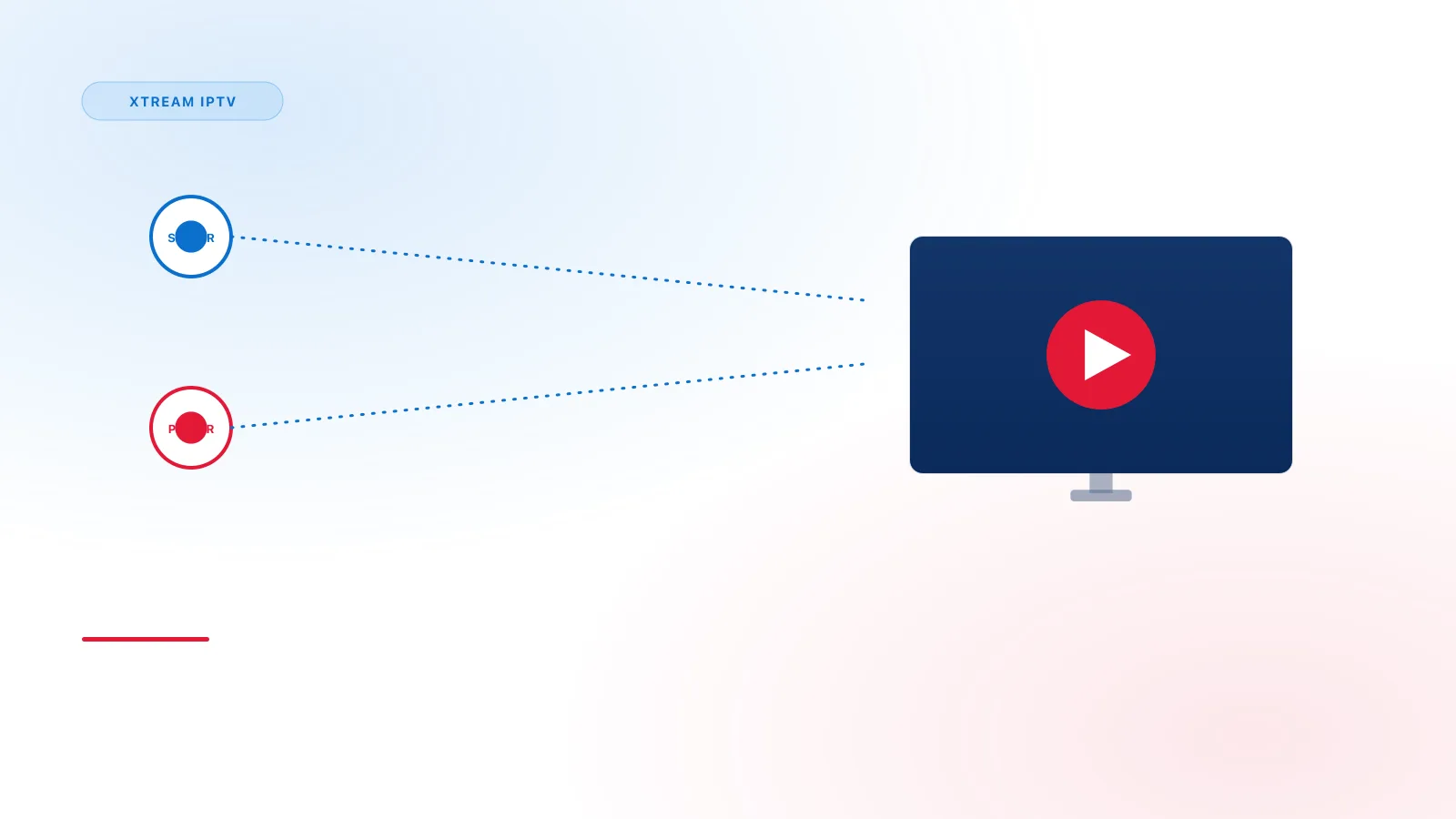
If you've come across the term "Xtream IPTV" while researching streaming setups, it can sound more complicated than it is. This guide breaks down what the term actually refers to, how the pieces fit together, and what you'd need to get something like it running.
What "Xtream IPTV" Actually Means
"Xtream" isn't a company or a single app — it refers to a widely used connection format (often called the Xtream Codes API) that IPTV player apps use to talk to a streaming service. A player that "supports Xtream IPTV" simply means it knows how to connect using a server address, a username, and a password, then organize whatever content that server provides into categories like live channels, movies, and series.
Because so many player apps support this same connection format, "Xtream IPTV" has become a general shorthand for this style of setup, rather than a specific product.
The Player vs. The Provider
This is the single most important distinction to understand:
- The player is the app you install on your TV, phone, or computer. It handles the interface, playback, and program guide display.
- The provider is whoever supplies the actual server, channels, and content. The provider gives you the access details the player connects with.
A player app on its own doesn't include any channels or content. It's a piece of software that displays whatever a connected service provides — similar to how an email app doesn't work until you connect it to an account.
What You Typically Need to Connect
Most Xtream-style setups ask for one of the following:
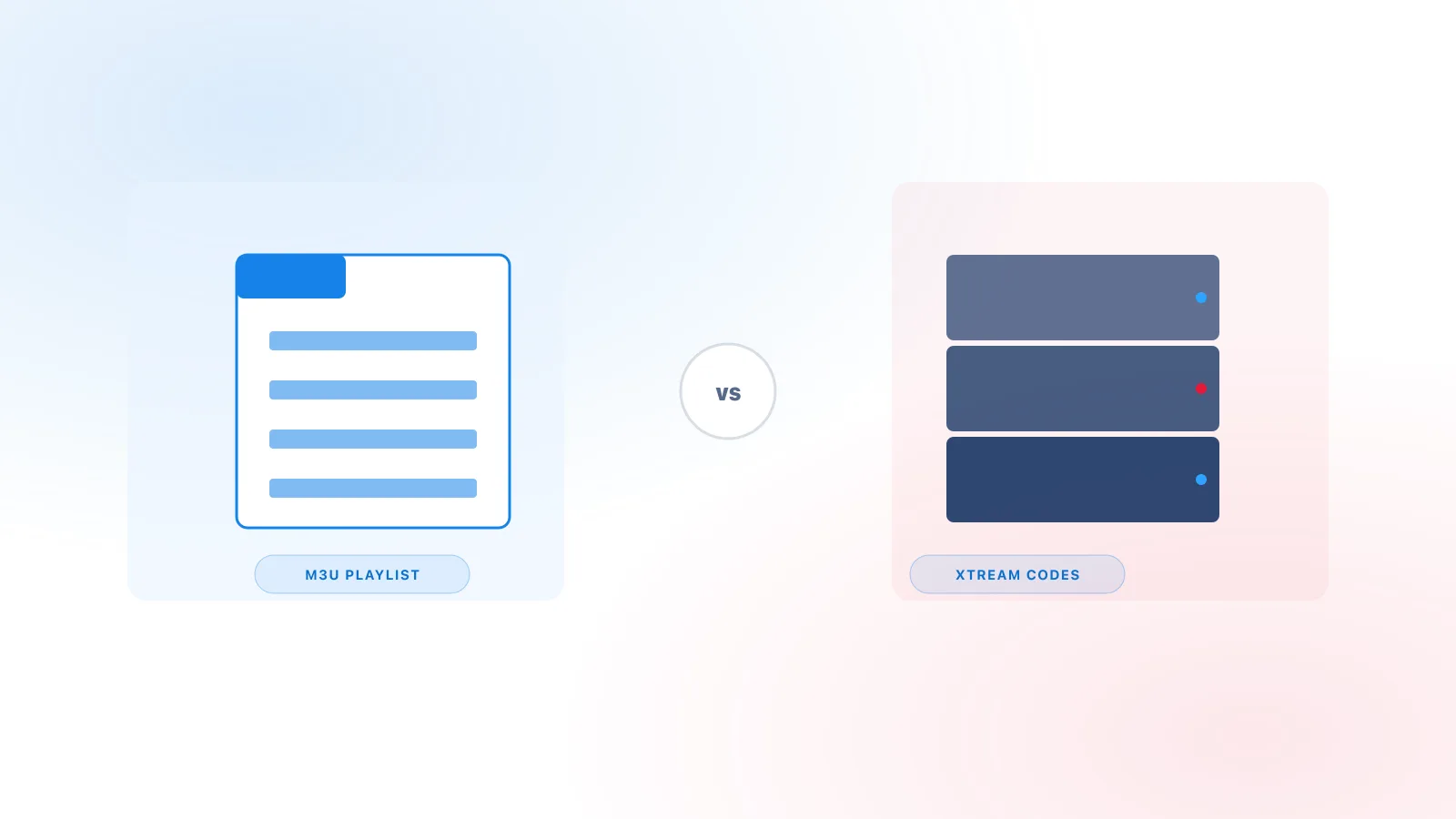
- Server URL, username, and password — three fields provided by your service.
- An M3U link — a single URL that bundles the same information into one playlist link.
Once entered, the player fetches your channel list, video-on-demand library, and program guide (EPG) data, if the provider supplies it. These two options aren't the same thing — see M3U vs Xtream Codes for a full breakdown of how they differ.
Basic Setup Concept
At a high level, setting up an Xtream-style connection looks like this:
- Install a compatible player on your device.
- Open the player and choose the Xtream login (or M3U) option.
- Enter your access details exactly as provided.
- Let the player load your content.
The exact screens differ by player and device, which is why we publish separate setup guides for each platform — see the Devices page for a full list.
Device Compatibility
Xtream-compatible players exist for most major platforms, including Smart TVs, Android TV, Google TV, Fire TV, Apple TV, Android, iPhone/iPad, Windows, and Mac. Availability and installation methods vary — for example, Apple TV only allows App Store apps, while Fire TV also supports sideloading. Independent third-party apps such as TiviMate and IPTV Smarters Pro are common examples of players that support this connection format — see Xtream IPTV Player Explained for more examples and how to evaluate one.
Next Steps
If you already have a device in mind, jump straight to its setup guide. If you're still getting familiar with the terminology, our Xtream IPTV Player explained article goes deeper into how the player itself works, and our FAQ covers the most common questions we hear.