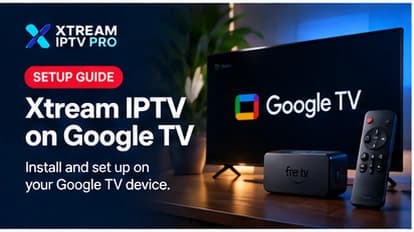
Google TV often gets confused with either Chromecast hardware or Android TV itself, so it's worth being precise before getting into setup: Google TV is an interface, not a separate operating system, and that distinction shapes what to expect here.
Can You Use IPTV on Google TV?
Yes. Google TV devices run on the same underlying platform as Android TV and share the same Google Play Store, so compatible IPTV player apps install and run the same way they do on any Android TV device.
Google TV is the interface layered on top of Android TV's operating system — think home screen and content recommendations, not a different app platform underneath. Some devices are marketed as "Google TV" (like newer Chromecast with Google TV models and several current TVs) while others run plain Android TV; either way, the app installation process covered below is the same.
What You Need
- A Google TV device (a smart TV running Google TV, or a streaming device like Chromecast with Google TV) connected to the internet
- A compatible player app installed from the Google Play Store
- Your Xtream Codes login (server URL, username, password) or M3U playlist URL from your provider
- A remote or a connected keyboard for entering login details, since typing on a TV remote is the slowest part of setup
How IPTV Works on Google TV
Once a compatible player is installed, it functions identically to how it would on any Android TV device: with an M3U link, it downloads and parses the playlist into a channel list; with an Xtream Codes login, it authenticates with the server URL, username, and password you provide, then requests channel, video-on-demand, and program guide data as needed. Google TV's interface layer — the content-recommendation home screen — sits on top of this and doesn't change how the player app itself connects or streams.
Step-by-Step Setup
- Have your access details ready — your Xtream Codes server URL, username, and password, or your M3U playlist link.
- Open the Google Play Store from your Google TV home screen and search for a compatible IPTV player.
- Install the app.
- Open the app and choose your connection method — an Xtream Codes login or an "M3U URL" option, depending on what your provider gave you.
- Enter your details using the remote, or connect a Bluetooth keyboard if your device supports one — this significantly speeds up typing a server URL and password.
- Save and allow the app to load, which can take longer than usual on the first run.
- Test playback on a live channel and a video-on-demand title if your service includes one.
M3U vs. Xtream Codes
As with any platform, which connection type applies to you depends on what your provider issued, not on Google TV itself. An M3U link is a static playlist file; an Xtream Codes login authenticates with a server address, username, and password, and commonly includes program guide data as part of the same connection. See M3U vs Xtream Codes: What's the Difference? for the full comparison, including a look at player compatibility with each.
Recommended Player Options
Examples of compatible player applications available on the Google Play Store for Google TV include TiviMate and IPTV Smarters Pro, both of which are widely used, independent third-party apps supporting Xtream Codes and M3U connections. Neither is owned by, affiliated with, or officially partnered with Xtream IPTV Pro. This isn't a ranked "best" list — see Xtream IPTV Player Explained for a broader look at what to check when picking a player for your setup.
EPG / TV Guide
Program guide availability depends on your app and connection method, not on Google TV specifically. Xtream Codes logins typically bundle EPG data automatically; M3U playlists usually need a separate XMLTV guide URL added. If guide data isn't appearing or looks wrong, that's almost always a provider- or app-side configuration issue — see Xtream IPTV EPG Explained for the common causes and fixes.
Troubleshooting
- Login fails immediately. Recheck the server URL, username, and password for typos or extra spaces — this is the most common issue on any platform.
- App feels sluggish or "forgets" settings after inactivity. Some Google TV devices manage background memory aggressively; reopening the app is usually enough to restore it.
- Playlist won't load. Confirm the M3U link is complete and your subscription is currently active with your provider.
- EPG is missing or blank. See the EPG guide — rarely a Google TV-specific problem.
- Playback stutters. Check your Wi-Fi signal strength first, especially on lower-cost Google TV streaming sticks, which can be more sensitive to weak signals than a wired connection.
- Confusing an app update with a missing feature. If a feature you expected isn't there, check whether the app has been updated recently — interfaces and options do change over time.
For anything beyond these, our full troubleshooting guide covers connection, playback, and EPG issues in more depth.
FAQ
Is Google TV the same as Android TV? Not exactly — Google TV is the interface (the home screen and content recommendations) built on top of the Android TV operating system. The apps, Play Store, and underlying platform are shared, which is why setup steps are the same either way.
Is Google TV the same as Chromecast? No. Chromecast is a hardware product line; "Chromecast with Google TV" is a specific device that runs the Google TV interface. Other manufacturers' TVs and streaming boxes also run Google TV without being Chromecast hardware.
Can I sideload an IPTV app on Google TV if it's not in the Play Store? Since Google TV runs on Android TV's platform, sideloading is technically possible on some devices in the same way it is on Android TV, though it's less commonly necessary since most compatible players are available directly through the Play Store.
Will an app built for Android TV work on Google TV? Generally yes, since they share the same underlying platform and Play Store — but always confirm compatibility on the app's own Play Store listing for your specific device.
Conclusion
Because Google TV shares Android TV's platform and Play Store, setting up an Xtream Codes or M3U-compatible player here is effectively the same process — install from the Play Store, enter your access details, and confirm playback. For the general step-by-step reference, see the Google TV setup guide.