Setting up IPTV access on an iPhone or iPad follows Apple's usual rules: everything comes through the App Store, there's no sideloading, and once an app is installed, setup is quick. This guide covers what's actually involved.
Can You Use IPTV on iPhone and iPad?
Yes. Several independent player apps on the App Store support both Xtream Codes and M3U-style connections, and iOS/iPadOS place no special restriction on using them beyond the platform's normal App Store review process. The experience is consistent across iPhone and iPad — the same apps typically run on both, with iPad taking advantage of its larger screen for grid-style channel browsing.
What You Need
- An iPhone or iPad running a reasonably current version of iOS or iPadOS
- A compatible player app installed from the App Store
- Your Xtream Codes login (server URL, username, password) or M3U playlist URL from your provider
- A stable Wi-Fi or cellular connection
That's the complete list — nothing beyond a standard App Store install and your access details is required.
How IPTV Works on iOS
A compatible player app on iPhone or iPad works the same way it does on any other platform: with an M3U link, the app downloads the playlist file and builds a channel list from it; with an Xtream Codes login, it authenticates against your provider's server with your server URL, username, and password, then requests channel, video-on-demand, and program guide data as you navigate. iOS itself doesn't alter this process — it only governs how the app is distributed and installed.
Because Apple only allows app distribution through the App Store, you won't encounter the "sideloading vs. app store" decision that comes up on Android-based platforms or Fire TV. This makes iOS setup more predictable, if slightly less flexible in which specific apps are available.
Step-by-Step Setup
- Have your access details ready — your Xtream Codes server URL, username, and password, or your M3U playlist link.
- Open the App Store on your iPhone or iPad and search for a compatible IPTV player.
- Install the app.
- Open the app and select your connection method — an Xtream Codes login screen or an "M3U URL" option, depending on what the app supports and what your provider issued.
- Enter your details. Use copy-paste where possible for the server URL and password to avoid typos — both fields are typically case-sensitive.
- Save and wait for the initial load, which can take a few moments longer than usual the first time.
- Confirm playback by opening a live channel and, if available, a video-on-demand title.
M3U vs. Xtream Codes
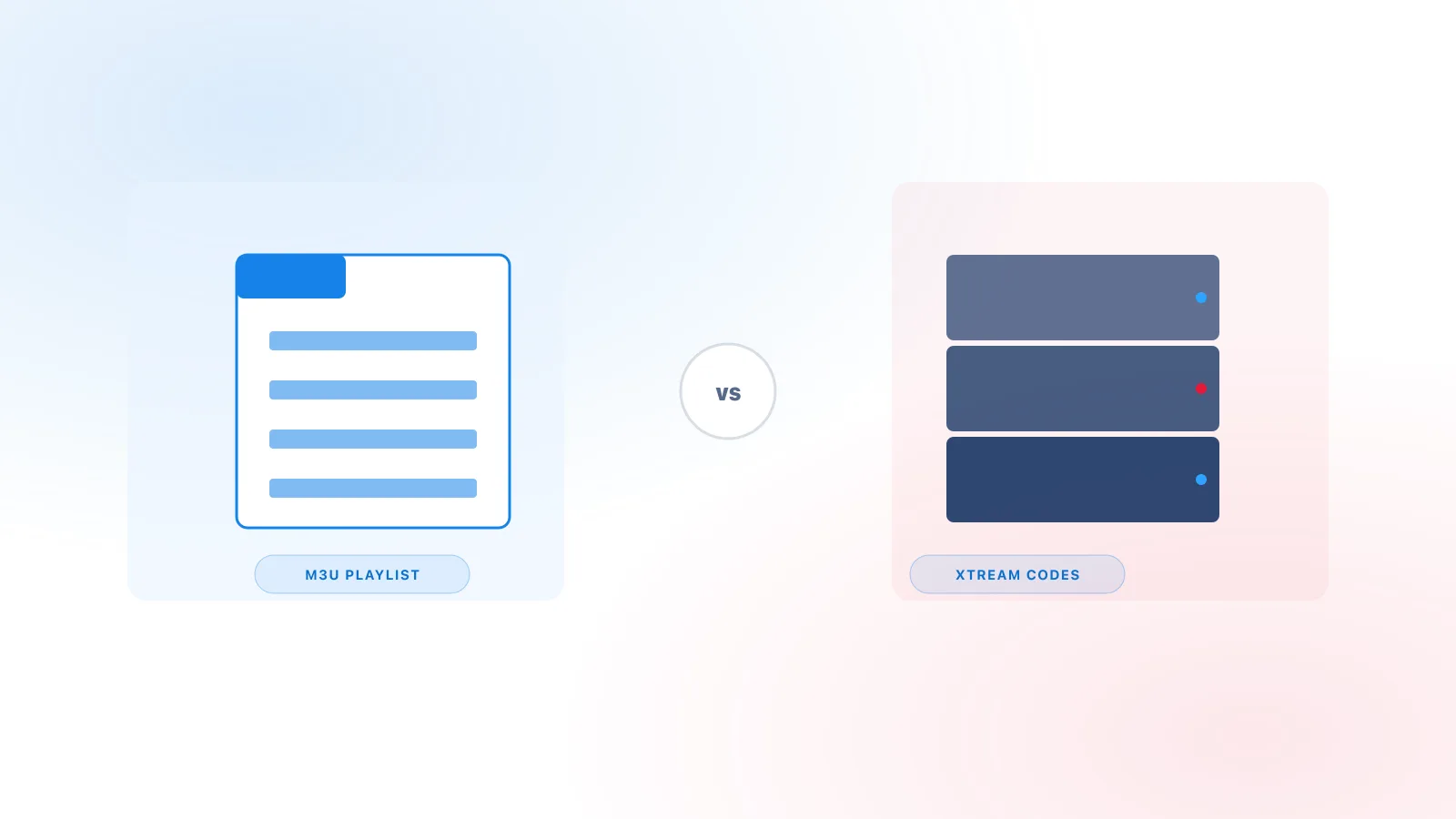
Which connection type you use depends entirely on what your provider gave you, not on iOS. An M3U link is a single playlist file; an Xtream Codes login uses a server address plus a username and password, and typically bundles program guide data into the same connection. Most current App Store player apps support both formats, but always confirm in the specific app's login screen. For a complete breakdown of how the two differ, see M3U vs Xtream Codes: What's the Difference?
Recommended Player Options
Examples of compatible player applications currently available on the App Store include GSE Smart IPTV and IPTV Smarters Pro, both of which support Xtream Codes and M3U connections and include EPG display. These are independent, third-party applications, not owned by or affiliated with Xtream IPTV Pro — mentioning them here isn't a ranking or an endorsement beyond noting they exist and are commonly used. Availability and features can change, so check an app's current App Store listing before assuming a specific capability. See Xtream IPTV Player Explained for more on what to look for in a player generally.
EPG / TV Guide
Program guide support on iOS depends on the app and your connection method, not on any iOS-specific limitation. With an Xtream Codes login, guide data is usually included automatically; with an M3U playlist, a separate XMLTV guide URL is often required. If the guide is blank or shows the wrong times, that's almost always a provider- or app-configuration issue — see Xtream IPTV EPG Explained for the common causes.
Troubleshooting
- Login fails right away. Double-check the server URL, username, and password for typos, extra spaces, or an expired subscription — the most common cause across every platform.
- App won't stay logged in / settings reset. Force-close the app fully (swipe up in the app switcher) and reopen it; a full device restart can also help.
- Playlist loads but shows no channels. Confirm the M3U link wasn't truncated when copied, and that it's still active with your provider.
- EPG isn't showing. See the EPG guide for the full list of causes — this is rarely iOS-specific.
- Playback buffers frequently on cellular. Switch to Wi-Fi where possible; cellular network variability affects continuous streaming more than downloaded content.
- App was removed or updated unexpectedly. App Store apps are occasionally pulled or renamed during review; search for a current compatible alternative if this happens.
For issues beyond these, our full troubleshooting guide covers connection, playback, and EPG problems in more detail.
FAQ
Do I need a jailbroken device to use IPTV on iPhone or iPad? No. Every compatible player mentioned here is distributed through the standard App Store — no jailbreaking or sideloading is involved or needed.
Can I use the same login on both my iPhone and my iPad? That depends on your provider's terms for simultaneous connections, not on iOS — check with your provider if you plan to use both devices at once.
Will an app installed on my iPhone automatically work on my iPad? Many player apps are universal (built for both iPhone and iPad), but not all are — check the App Store listing for iPad support before assuming.
Does AirPlay work with these apps? Support varies by app; some compatible players include AirPlay output to a TV or Apple TV, which is worth checking in the app's own feature list if that matters to you.
Conclusion
iOS's App Store-only model makes IPTV setup on iPhone and iPad predictable: install a compatible player, enter your Xtream Codes or M3U details, and you're generally connected within minutes. For the general step-by-step reference, see the iPhone / iPad setup guide.