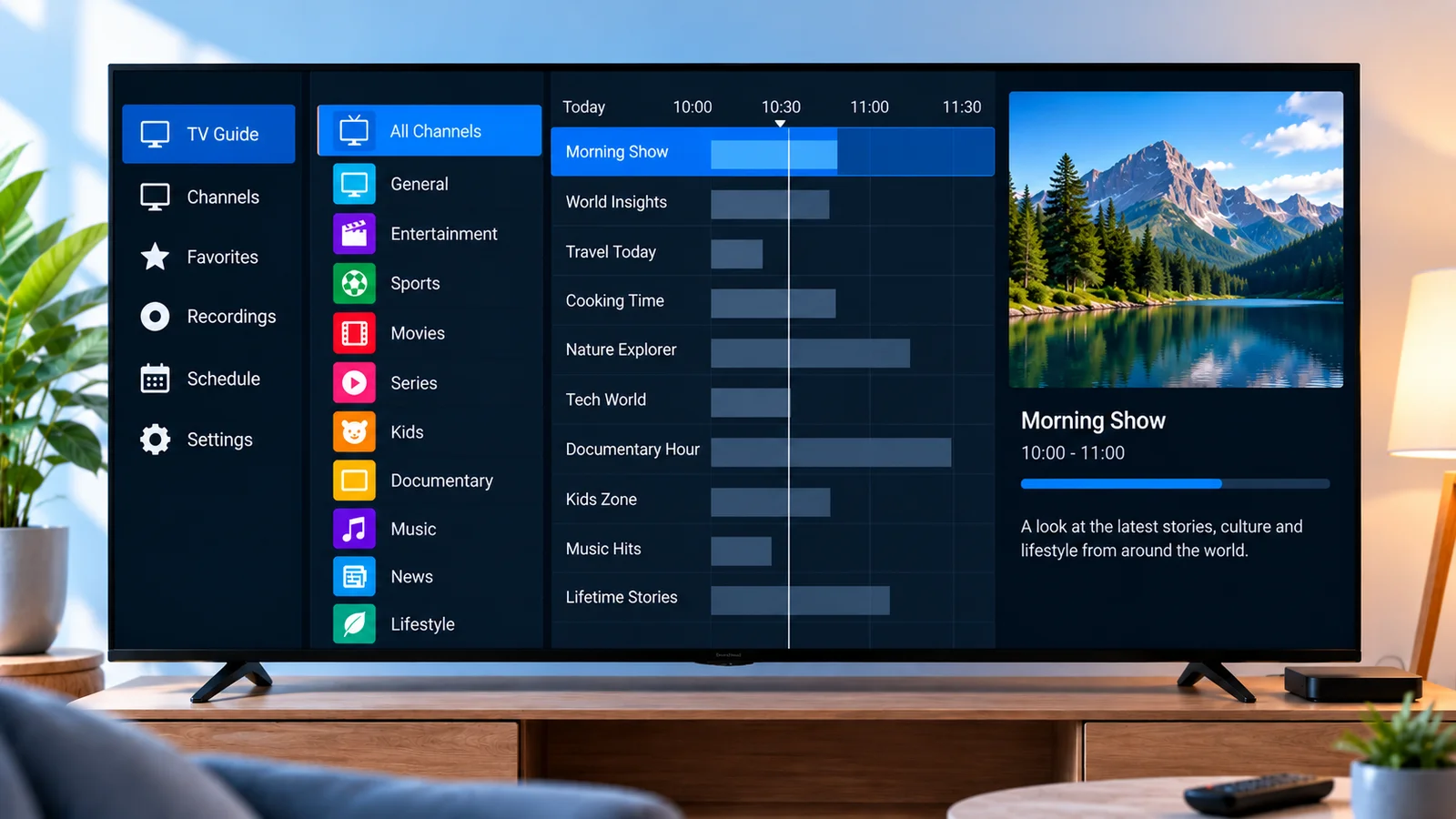
TiviMate is a widely used player for Android-based TV devices, built around organizing a channel list rather than just displaying one. This guide covers adding your own provider's access details, what its optional Premium upgrade actually is, and what to check if setup doesn't work.
TiviMate is developed and distributed independently by its own developer. This site is not affiliated with, does not endorse, and has no partnership with TiviMate. It's mentioned here as a real, widely available example of a compatible player, not as a ranking or recommendation.
What TiviMate Is and Isn't
TiviMate supplies no channels or content of its own — it connects to whatever service you already have access to. It's built specifically for Android TV, Google TV, and Fire TV-style interfaces, rather than phones or desktop platforms; there is no iOS version. See Xtream IPTV Player Explained for the general distinction between a player and the service it connects to.
Before You Start
- Your access details: an Xtream Codes-style login (server address, username, password) or an M3U playlist link, from your own provider.
- TiviMate installed on a supported Android TV, Google TV, or Fire TV device.
- A stable internet connection.
Only use access details supplied by your own provider for an account you're authorized to use.
Adding a Playlist
TiviMate's setup is organized around a Playlists screen rather than a per-login add-user flow. The general sequence:
- Open the app's settings (usually a gear icon) and find the Playlists section.
- Choose the option to add a new playlist.
- Select the connection type that matches what your provider gave you — an Xtream Codes-style option (server address, username, password) or an M3U URL option.
- For an Xtream Codes login, enter the server address, username, and password exactly as supplied.
- For an M3U link, paste the full URL exactly as supplied — see How to Add an M3U Playlist for the general version of this step.
- If your provider supplies a separate guide (EPG/XMLTV) link, there's usually a place to add it on the same or a following screen.
- Give the playlist a name you'll recognize, then confirm and wait for it to load.
Exact screen names and field wording can shift slightly between app versions. Look for the option that matches your provider's connection type, whichever way it's labeled in your current version.
Free vs. Premium: What Actually Changes
TiviMate's free tier works as a complete player on its own, but it's limited to one playlist at a time. Premium is an upgrade purchased inside the same app — it is not a separate app or a separate download, and "TiviMate Premium" doesn't mean a different product than plain "TiviMate."
Commonly described Premium additions include support for multiple playlists at once, more flexible channel organization and favorites, and catch-up/recording-related features where your provider's content supports them. Exact feature details and any device-count limit tied to a Premium purchase can change between versions, so check TiviMate's own current purchase screen for what's included before assuming a specific feature is or isn't part of it — this guide intentionally doesn't list exact numbers that could go stale.
If you only use one playlist and don't need its extra organization features, the free tier is a complete, functional setup on its own.
Organizing Channels
One of TiviMate's more distinct features compared to a simpler player is channel organization — grouping channels, marking favorites, and customizing the order you see them in. These settings live within the app itself, separate from your playlist's connection details, and don't affect your login or the content your provider supplies. Changes you make here are local to your device, not changes to your account.
EPG Setup
If your provider supplies a separate program guide link, add it alongside your playlist rather than expecting it to appear automatically. Guide data can take longer to populate than the channel list itself — see Xtream IPTV EPG Explained for the full set of common guide-related issues, most of which apply the same way regardless of which player you use.
Common Entry Mistakes
- A missing port number in the server address, if your provider's address includes one.
- Extra spaces or a partial link, especially with a long M3U URL.
- Entering a playlist link into the Xtream Codes fields, or the reverse — these are separate options in the add-playlist flow, and using the wrong one produces an error that looks like incorrect credentials even when the values themselves are correct.
- Wrong capitalization in the username or password.
When Setup Still Fails
- Confirm your device has an active internet connection.
- Remove the playlist and add it again, rather than only retrying the same entry.
- Confirm your subscription is active and your provider hasn't changed your access details.
- Try the same details in a second compatible player, if you have one, to narrow down whether the issue is the details or this specific app.
For broader playback and connection troubleshooting beyond this step, see the full troubleshooting guide.
Summary
TiviMate adds a playlist — either an Xtream Codes login or an M3U link — from its Playlists settings screen, and works as a complete player on the free tier with a one-playlist limit. Premium is an in-app upgrade, not a separate product, and mainly expands multi-playlist support and channel organization rather than changing how the core connection works. For a player-agnostic walkthrough of the same login fields, see How to Add Xtream Codes to an IPTV Player.