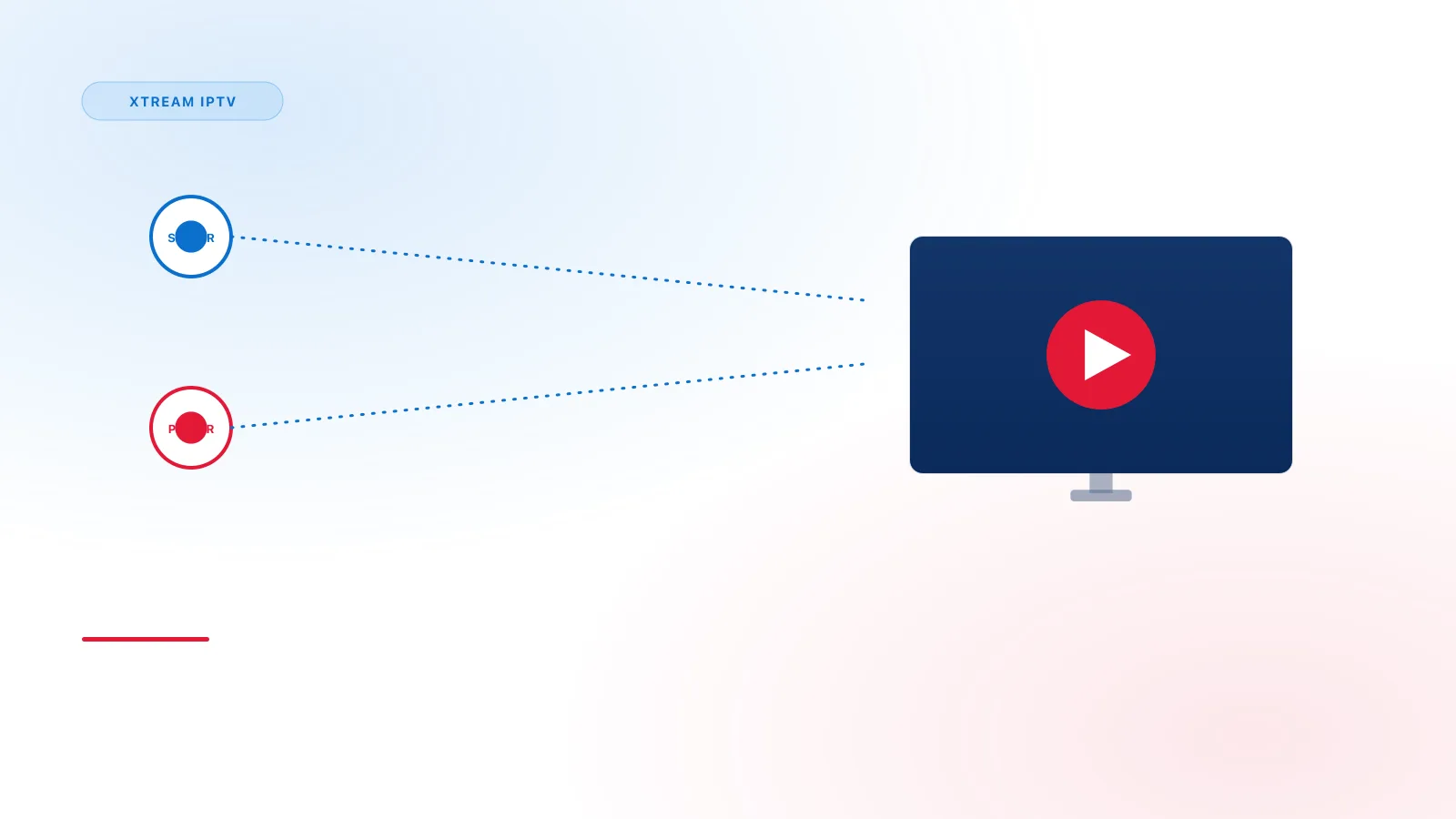
Some compatible players ask for three details instead of a single playlist link: a server URL, a username, and a password. This format is commonly called an Xtream Codes login. This guide explains what each field means, where it goes in a player, what to expect after a successful connection, and what to check when the login fails.
Use only the details your own provider gave you for a service you are authorized to use. This guide does not cover where to find or share account details, and it does not cover free or shared access.
What an Xtream Codes Login Contains
The login has three parts:
- Server URL. The address of the service's server. It usually starts with
http://orhttps://and often ends with a port number, such as:8080. Some providers and players call this field the host, portal, or DNS. - Username. The account identifier your provider assigned to you.
- Password. The secret that goes with that username. Passwords are case-sensitive.
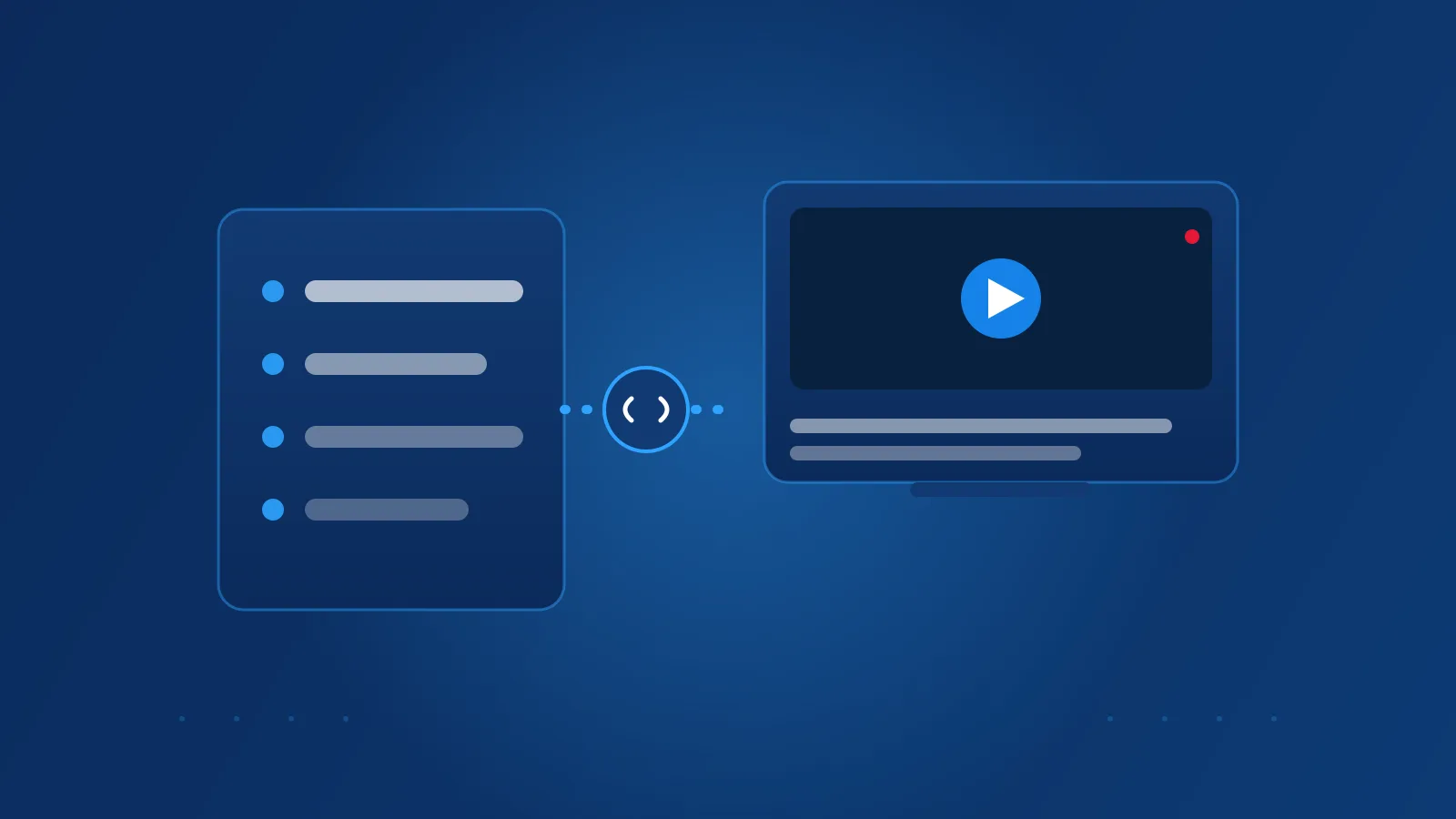
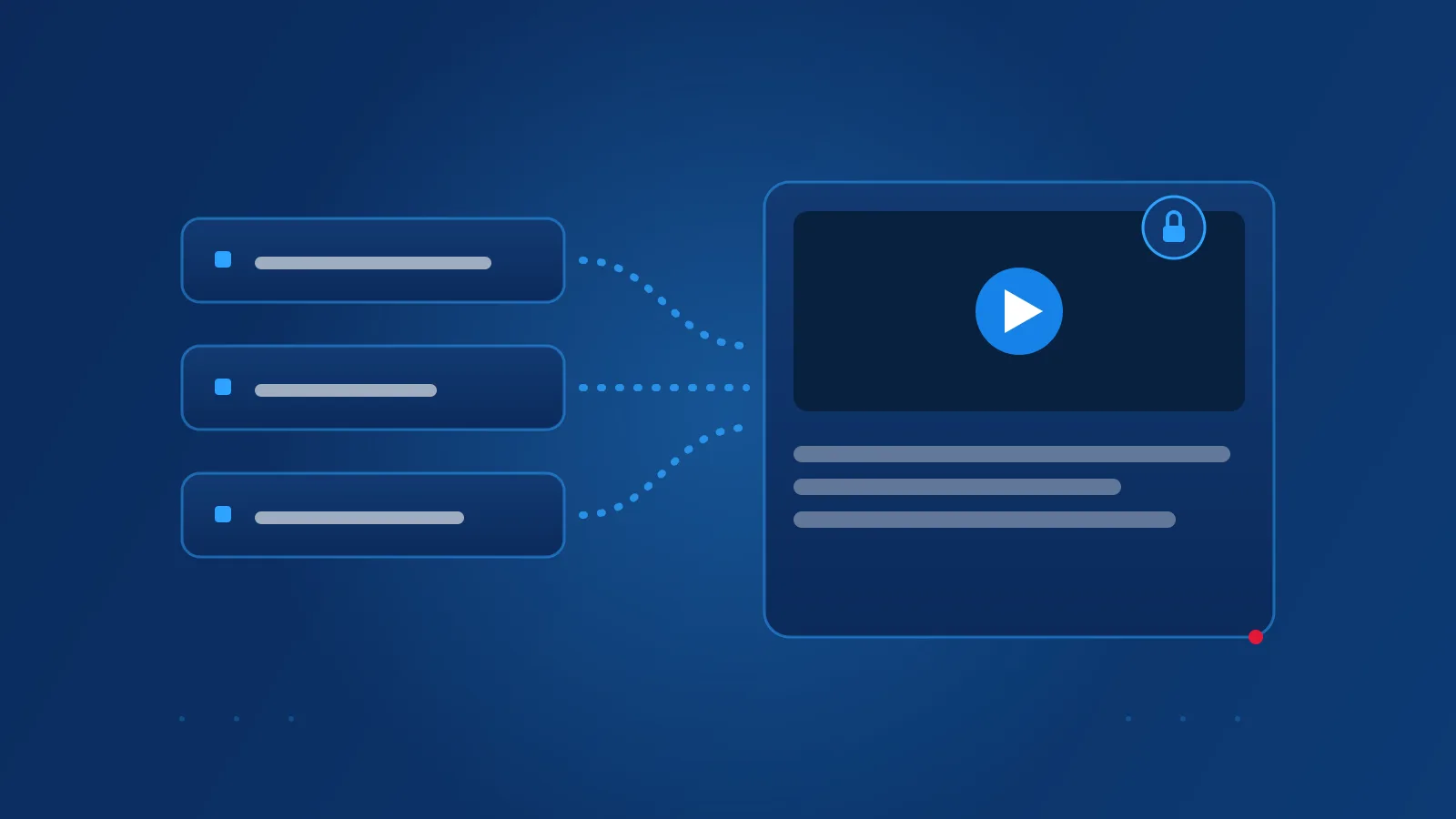
These three values are not a content library, and they are not a file. They tell a compatible player where to connect and which account to use. The player then requests your channel list, on-demand titles, and guide data from the server.
Before You Start
- Confirm that your subscription is active and that your provider has given you these three details.
- Keep the details private. Don't post them, share them with other people, or store them in shared documents.
- Check which player your provider supports. Not every player accepts this login format, so confirm that the player you're using offers an Xtream Codes or similar login option.
If you don't have all three details, contact your provider. Don't use details from another source.
Where the Fields Go
When you add a service in a compatible player, look for a login option that names Xtream Codes, an Xtream API, or a portal login. Choosing that option shows the three fields. The exact wording and screen layout depend on the player and the device, so check your player's own setup screens.
Some players ask for a profile name as well. That name is only a label on your device, and you can choose anything you like.
Step-by-Step Setup
- Open your compatible player and find the option to add a new service or user.
- Choose the login type that matches the three-field format, such as Xtream Codes or Xtream API.
- Enter a profile name so you can recognize the login later.
- Enter the server URL exactly as your provider supplied it, including the protocol and any port number.
- Enter your username.
- Enter your password, paying attention to capital letters.
- Save or confirm the login, then wait while the player connects.
If the player shows an error, don't keep retrying immediately. Check each field first, using the list in the next sections.
What Happens After a Successful Connection
After a successful login, the player usually loads several things:
- Live TV channels, grouped into categories where the provider supplies them
- On-demand titles, such as movies and series, if your plan includes them
- Guide data (EPG), if your provider supplies it
Loading can take several minutes, especially for large channel lists. Guide data often loads more slowly than the channel list, and some providers don't supply guide data at all. What a player shows is determined by your plan and the provider's service, so a channel or title missing from the list isn't always a setup error.
Common Field-Entry Mistakes
Most failed logins come from a small number of entry problems:
- A missing port. If your provider gave you a port number, it must be included after the colon.
- Extra text after the server address. Don't add a trailing slash, a path, or any extra words unless your provider told you to.
- Wrong capitalization. Usernames and passwords are case-sensitive.
- Extra spaces. A space before or after a value can cause a failed login. Delete any spaces you didn't mean to type.
- Swapped fields. Make sure the username and password are in the correct boxes.
- A playlist link in the login fields. A single playlist link is a different connection method. Use the M3U setup instead, described in How to Add an M3U Playlist.
When the Login Still Fails
If you've checked each field and the login still fails, work through these checks:
- Confirm the device is connected to the internet and that another website loads.
- Restart the player app completely, then try the login again.
- Check that your subscription is active and that the details haven't changed. Providers sometimes change server addresses.
- Try the same details in a second compatible player, if you have one. If they fail in both, the problem is more likely with the details or the service.
- If the details work in another player but not in the first one, the first player may not support this login type.
For more detailed fixes, see the troubleshooting guide, which also covers login-related errors.
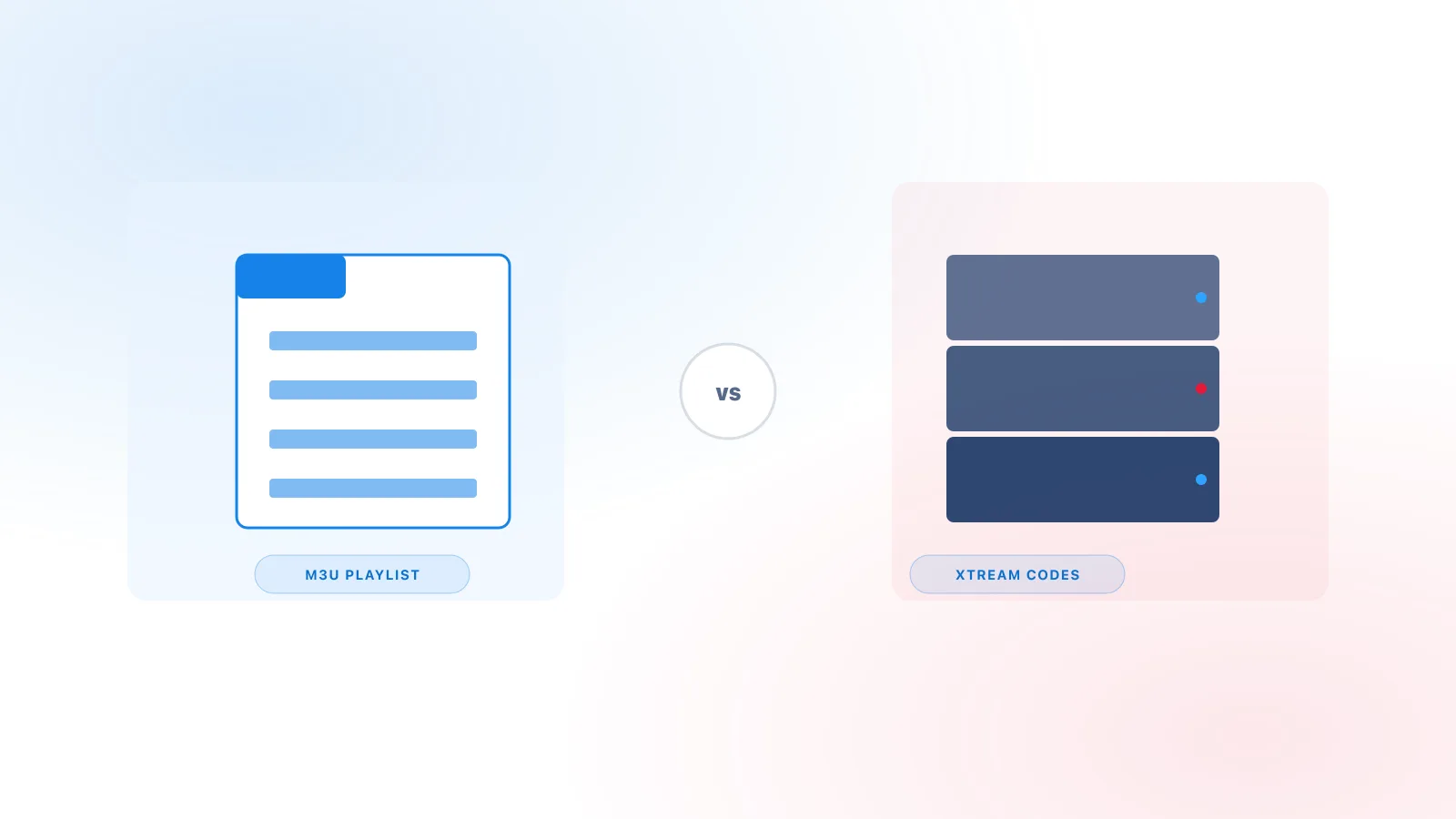
Xtream Codes Login or M3U Playlist?
These are two different ways to connect a player to a service:
- An Xtream Codes login uses a server URL, a username, and a password. The player requests structured data from the server.
- An M3U playlist is a single link to a list of channels. The player downloads the list.
Which one you use depends on what your provider gave you and what your player supports. The M3U vs Xtream Codes comparison explains the differences in more detail. If you were given a single link instead, follow the M3U playlist guide.
When to Contact Your Provider
Contact your provider when:
- You don't have all three details, or you aren't sure which details belong in which field
- The login worked before and now fails, which can happen after a change of server or password
- Your account shows as suspended, expired, or at a connection limit
- You need a replacement or updated set of details
Your provider is the only party who can confirm your account and its details. This site cannot verify account information.
Summary
An Xtream Codes login is three details from your own provider: a server URL, a username, and a password. Enter each one exactly as supplied, using the login option your player offers. After a successful connection, the player loads channels, and possibly on-demand titles and a guide, depending on your plan. If the login fails, check the entry details first, then your subscription, and then contact your provider.