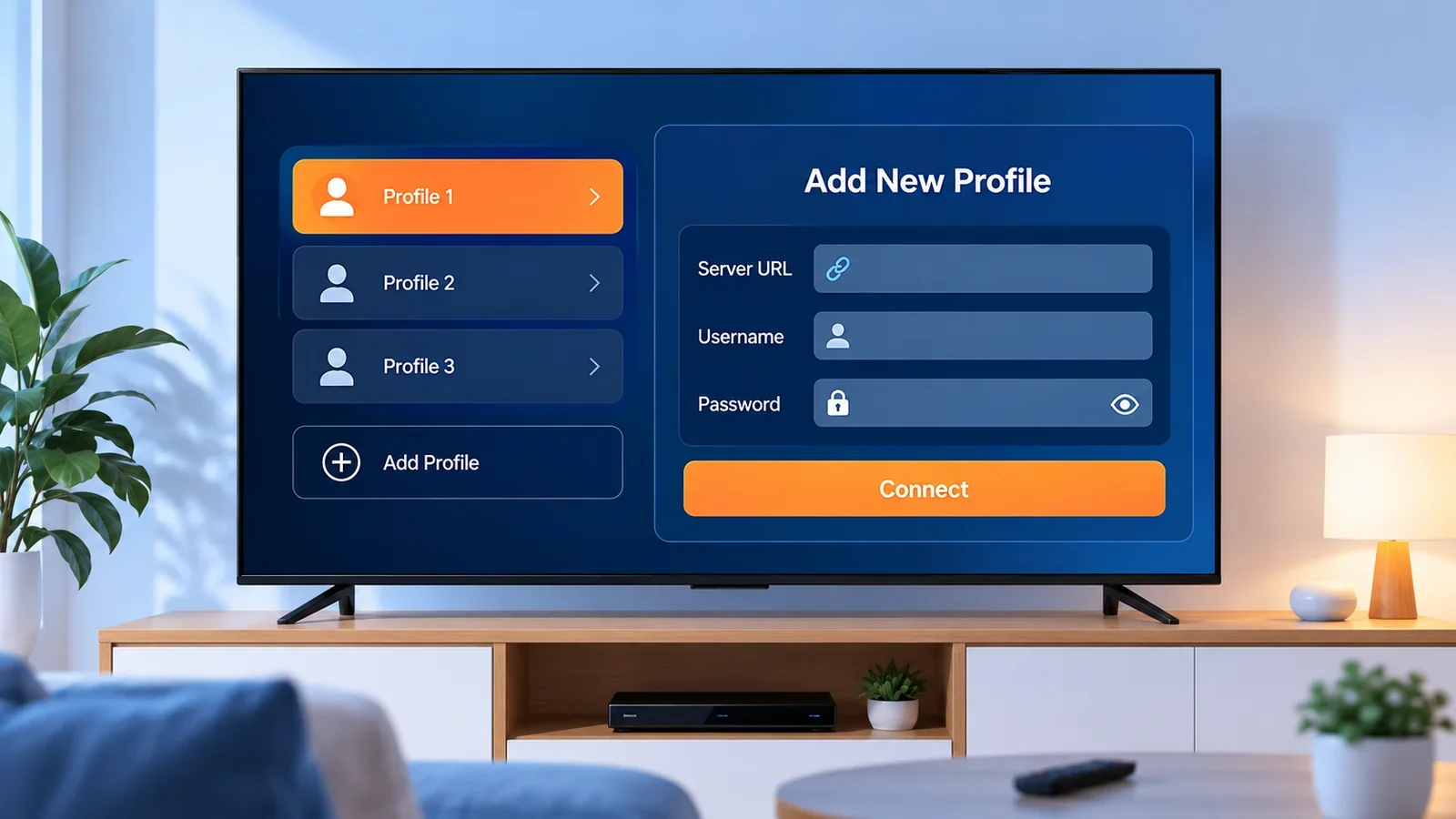
IPTV Smarters Pro is one of the most widely used Xtream Codes and M3U-compatible player apps. This guide covers where to enter your own provider's access details, what the app does with them, and what to check if the connection doesn't work.
IPTV Smarters Pro is developed and distributed independently by its own developer. This site is not affiliated with, does not endorse, and has no partnership with IPTV Smarters Pro. It is mentioned here because it's a real, widely available example of a compatible player — not as a ranking or recommendation over any other app.
What IPTV Smarters Pro Is and Isn't
Like any compatible player, IPTV Smarters Pro supplies no content of its own. It's a display layer that connects to whatever service you already have access to, using details your own provider gave you. See Xtream IPTV Player Explained for the broader distinction between a player, a playlist, and a provider, if that's unfamiliar.
Before You Start
- Your access details: either an Xtream Codes-style login (a server/portal URL, username, and password) or an M3U playlist link, from your own provider.
- The app installed on your device.
- A stable internet connection.
Only use access details that were given to you by your own provider for an account you're authorized to use.
Adding an Xtream Codes Login
The general flow, across the versions this guide was checked against, is to look for an option to add a new login or user profile, then choose the login type that matches an Xtream Codes-style connection (sometimes labeled "Xtream Codes API" or similar) rather than a playlist. From there:
- Give the profile a name — this is just a label you choose, so you can recognize it later if you add more than one.
- Enter the server or portal address your provider gave you, exactly as supplied, including the protocol (
http://orhttps://) and any port number. - Enter your username and password, watching for capitalization — these fields are case-sensitive.
- Save or confirm, then wait while the app connects and loads your content.
Exact field labels (for example, whether a field says "Server URL" or "Portal URL") can vary slightly between app versions. Use the field that asks for your provider's address, whatever it's labeled in your specific version — the three pieces of information needed are always the same.
Adding an M3U Playlist Instead
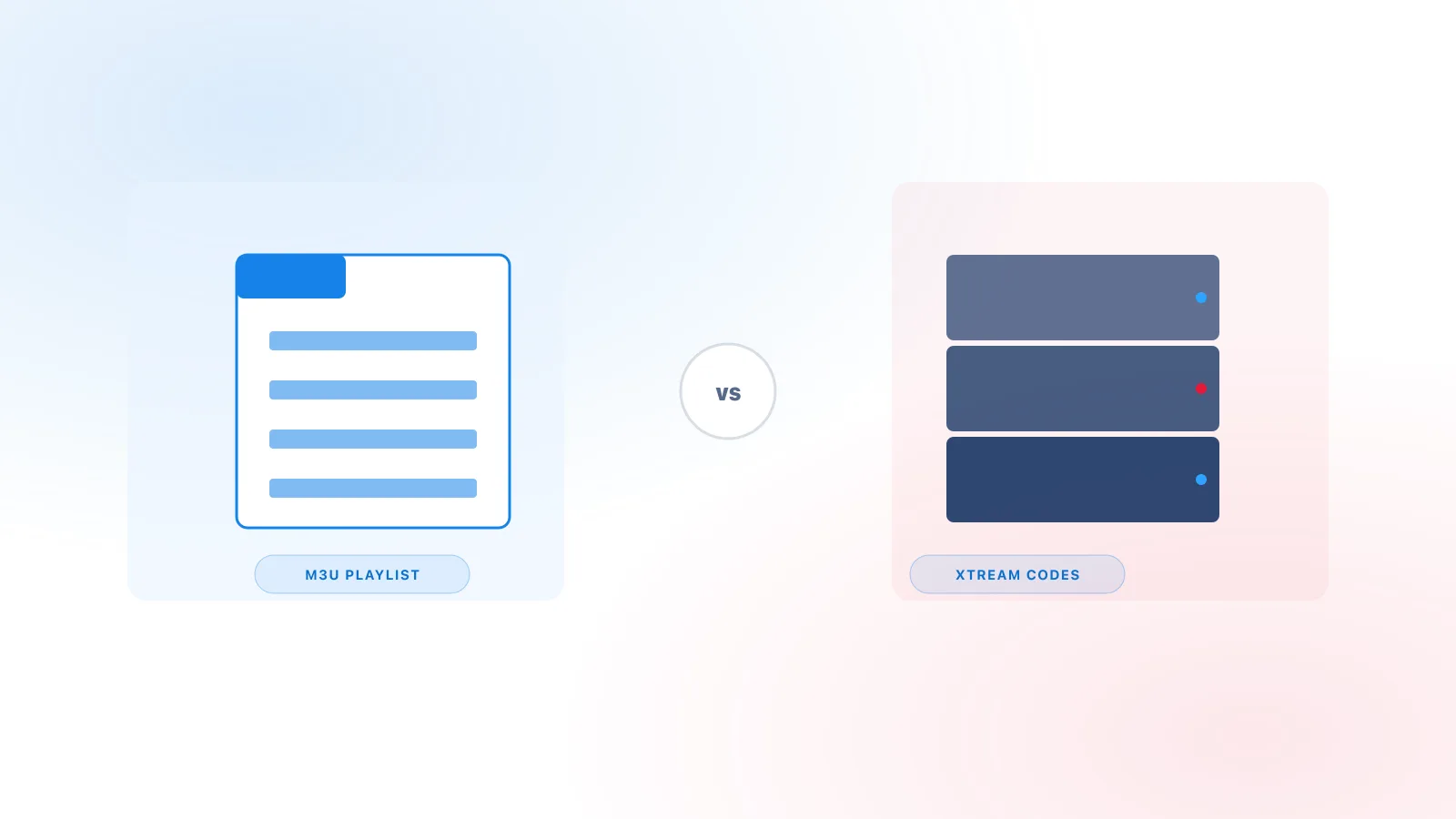
If your provider gave you a single playlist link rather than three separate login fields, IPTV Smarters Pro also supports that as a separate login type, usually listed alongside the Xtream Codes option as something like "Login with Playlist" or an M3U URL entry. Paste the full link exactly as supplied — see How to Add an M3U Playlist for the general version of this process, and M3U vs Xtream Codes if you're not sure which format you actually have.
Managing More Than One Login
IPTV Smarters Pro lets you add more than one login or profile on the same installation, each kept separate from the others. This is useful if you manage access for more than one account, or want to keep a test login separate from your main one. Switching between profiles is typically done from the same screen where you originally added them — look for a profile list or switch option rather than needing to remove and re-add a login each time.
What Loads After Connecting
After a successful connection, the app typically loads live channels, on-demand content if your plan includes it, and program guide (EPG) data if your provider supplies it. Guide data in particular can take longer to populate than the channel list — this isn't unique to this app, and is covered in more detail in Xtream IPTV EPG Explained.
Common Entry Mistakes
- A missing port number, if your provider's address includes one after a colon.
- Extra characters — a trailing slash, extra spaces, or a partial copy-paste of a long server address.
- Wrong capitalization in the username or password.
- Pasting a playlist link into the Xtream Codes fields, or vice versa — these are different login types in the app, and using the wrong one produces an error that can look identical to a simple typo.
When the Login Still Fails
If the fields are correct and the connection still fails:
- Confirm your device has an active internet connection.
- Restart the app completely and try again.
- Confirm your subscription is active and that your provider hasn't changed your access details recently.
- Try the same details in a second compatible player, if you have one — if they work there, the issue is more specific to this app on this device rather than the details themselves.
For broader troubleshooting beyond the login step itself — buffering, missing guide data, or app crashes — see the full troubleshooting guide.
Availability Note
IPTV Smarters Pro has, at various points, been subject to regional app-store removals following rights-holder disputes over how some IPTV apps can be used to view unauthorized broadcasts — this is a reflection of app-store policy and regional legal action, not a statement about this guide's content or about what you personally do with your own authorized access. Availability can vary by region and by platform, and can change without notice. Check the app's current listing on your device's store before assuming it's available, and use only official, verified sources to install it.
Summary
IPTV Smarters Pro accepts either an Xtream Codes login (server address, username, password) or an M3U playlist link, added as separate login types from the app's add-user screen. Enter your own provider's details exactly as supplied, double-check capitalization and extra characters if the connection fails, and confirm your subscription is active before assuming the app itself is at fault. For a player-agnostic walkthrough of the same login fields, see How to Add Xtream Codes to an IPTV Player.