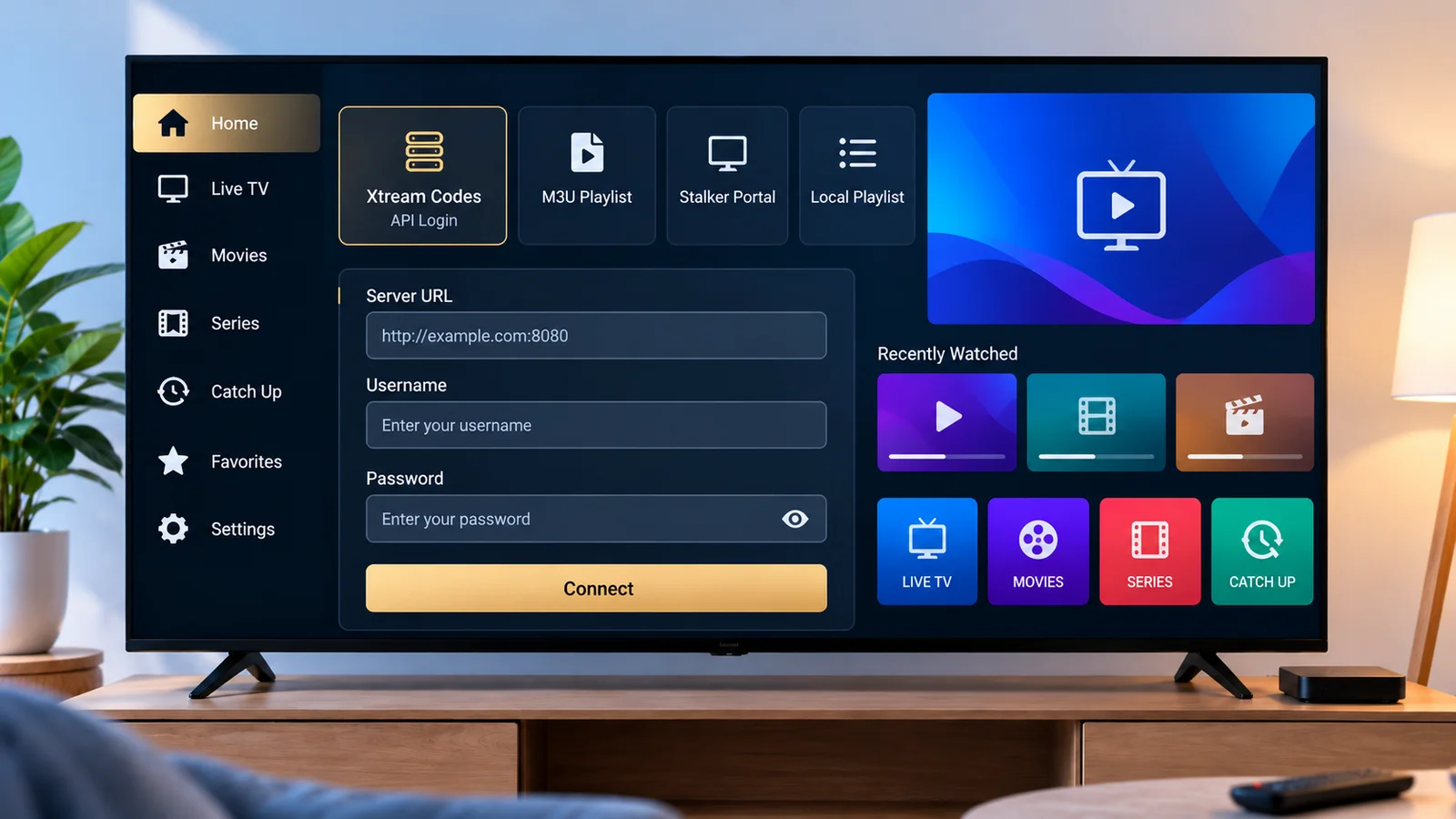
IBO Player Pro is a compatible player app that accepts Xtream Codes and M3U-style connections. Because several similarly named apps exist from different, unrelated developers, this guide starts with confirming you actually have the right one before covering how to connect it.
IBO Player Pro is developed and distributed independently by its own developer. This site is not affiliated with, does not endorse, and has no partnership with IBO Player Pro. It's mentioned here as a real example of a compatible player, not as a ranking or recommendation.
Confirm You Have the Right App
This is worth checking first: app stores have listed more than one app with a very similar name, from different, unrelated developers — some literally called "Ibo Player Pro" and others using closely related names. Before entering any account details, check the developer name shown on the app's store listing page, not just the app's name or icon, and confirm it matches what you intended to install. If you're not certain which listing is the one you meant to use, it's worth double-checking directly on your device's app store rather than assuming based on the name alone.
This matters beyond simple confusion: entering real account access details into the wrong app, even an apparently similar one, means trusting that app's developer with those details unnecessarily.
What IBO Player Pro Is and Isn't
Like any compatible player, it supplies no channels or content of its own — it displays whatever a connected service provides. See Xtream IPTV Player Explained for the general distinction between a player and the service it connects to.
Before You Start
- Your access details: an Xtream Codes-style login (server address, username, password) or an M3U playlist link, from your own provider.
- The correct app installed, confirmed per the check above.
- A stable internet connection.
Only use access details supplied by your own provider for an account you're authorized to use.
Adding a Login
The general pattern for this kind of player app is to look for an option to add a new login or playlist, then choose the connection type that matches what your provider gave you — either an Xtream Codes-style entry (server address, username, password) or an M3U link.
Exact menu wording and screen layout for this app can vary by version, and reliable, officially documented steps for the current version weren't available at the time of writing. Rather than state a specific menu path that might not match what you see, look for an entry screen asking for the same three Xtream Codes fields (or a playlist/M3U URL field) described below — the underlying information needed is the same regardless of the exact screen layout.
For an Xtream Codes-style login, you'll need:
- Server/portal address — exactly as your provider supplied it, including the protocol (
http://orhttps://) and any port number. - Username and password — case-sensitive; enter them exactly as given.
- A profile name — a label you choose, not something your provider assigns.
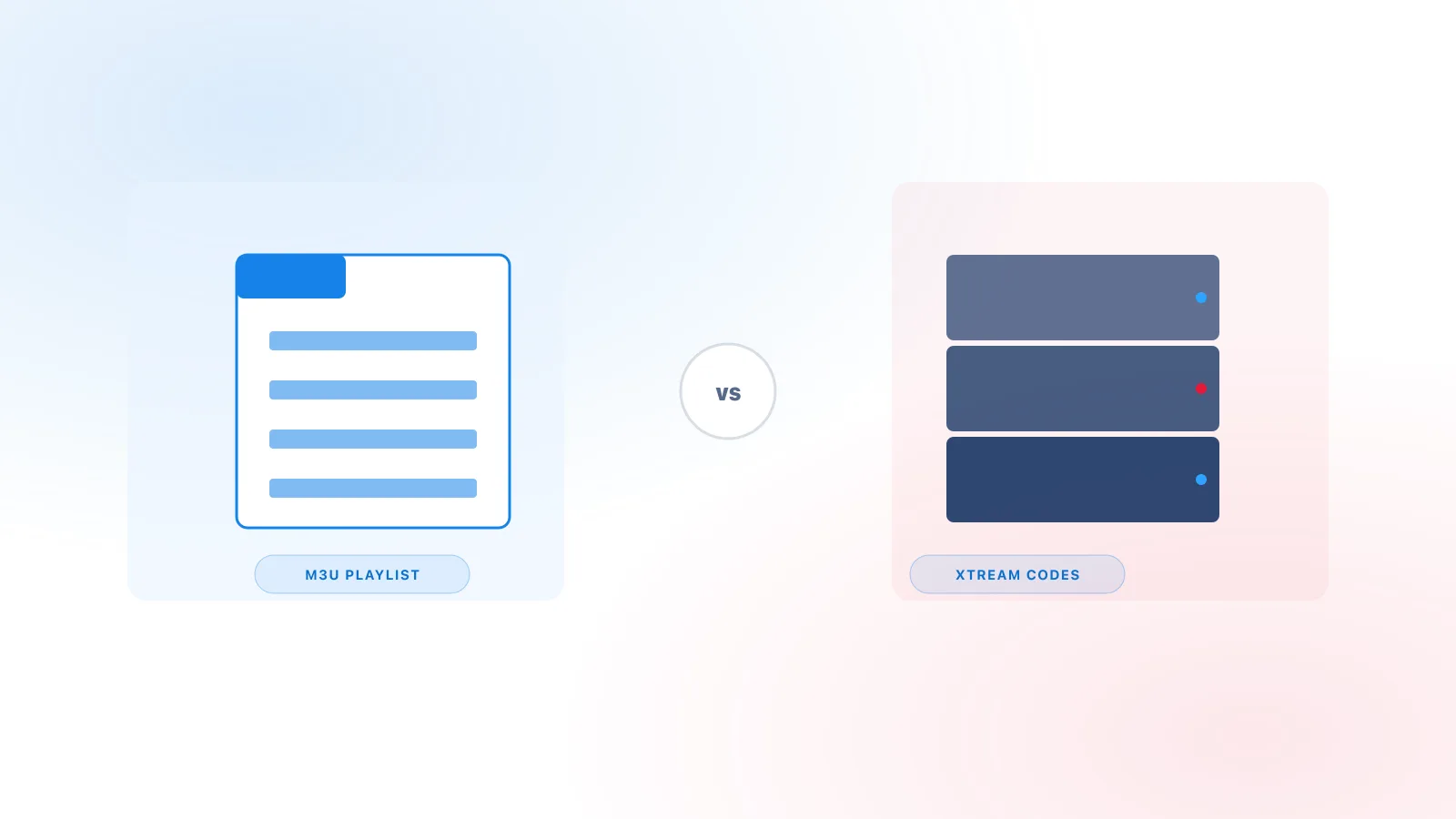
For an M3U playlist instead, paste the full link exactly as supplied — see How to Add an M3U Playlist for the general version of this step, and M3U vs Xtream Codes if you're unsure which format you have.
What Loads After Connecting
After a successful connection, expect live channels, on-demand content where your plan includes it, and program guide data if your provider supplies it — the same general behavior as any other compatible player. Guide data commonly takes longer to populate than the channel list; see Xtream IPTV EPG Explained if yours appears empty at first.
Common Entry Mistakes
- A missing port number, if your provider's server address includes one.
- Extra spaces or a partial copy-paste, particularly with a long M3U link.
- Wrong capitalization in the username or password.
- Entering a playlist link where an Xtream Codes field is expected, or the reverse.
When the Login Still Fails
- Re-confirm you're using the correct app, per the first section above.
- Confirm your device has an active internet connection.
- Restart the app completely and try again.
- Confirm your subscription is active and your provider hasn't changed your access details.
- Try the same details in a second compatible player, if you have one, to separate an app-specific issue from a problem with the details themselves.
For broader troubleshooting beyond the login step — buffering, missing guide data, or playback issues — see the full troubleshooting guide.
Availability Note
Don't assume this app is available on every platform or app store — confirmed availability can change, and this guide doesn't list specific stores as current guarantees. Install only from an official, verified listing, and verify the developer name shown on that listing before entering any account details, per the first section above.
Summary
Before anything else, confirm you have the correct app and developer, since similarly named apps exist from unrelated developers. From there, IBO Player Pro accepts either an Xtream Codes login or an M3U playlist link through an add-login or add-playlist screen. Enter your own provider's details exactly as supplied, and work through the device/connection checks above if it still doesn't connect. For a player-agnostic walkthrough of the same login fields, see How to Add Xtream Codes to an IPTV Player.