Kodi is a free, open-source media center. It can play live channels from an M3U playlist through a built-in add-on called the PVR IPTV Simple Client. This guide explains how to set that up, what the workflow supports, and what to check when it doesn't work.
Kodi is an independent project. This site is not affiliated with Kodi, and this guide does not recommend any third-party add-on or content source.
What Kodi Is and What the IPTV Client Does
Kodi organizes media such as music, video, and images. Its live TV features depend on a PVR client, which is an add-on that connects Kodi to a channel source. The PVR IPTV Simple Client is the client that ships with Kodi for this purpose.
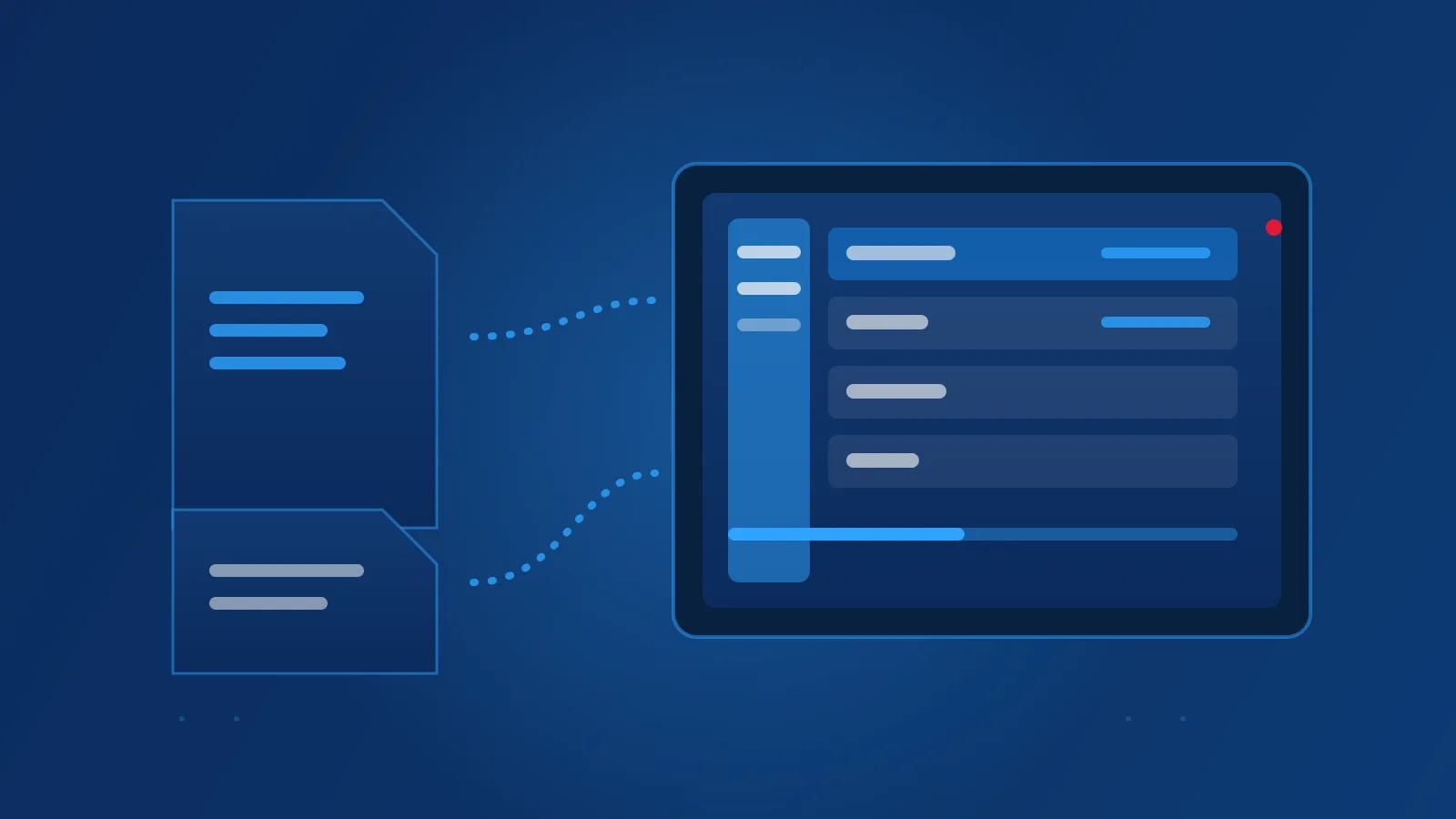
The client works with two inputs:
- An M3U playlist. A list of channels, provided as a link to a file or as a file on your device.
- An XMLTV guide. An optional schedule file that supplies programme information for those channels.
When both are set up correctly, Kodi shows your channels in its TV section and, if a guide is supplied, a programme grid.
An Important Limitation: Xtream Codes Logins
The built-in client takes an M3U playlist, not a server URL with a username and password. If your provider gave you an Xtream Codes login instead of a playlist link, you cannot enter those three details directly in this client.
Your options are:
- Ask your provider whether they can supply an M3U playlist link for your account. Use it only if they confirm it's for your authorized account.
- Use a compatible player that accepts the Xtream Codes login format. See How to Add Xtream Codes to an IPTV Player.
This guide does not explain how to build playlist addresses from login details, and it does not recommend third-party add-ons for Xtream logins.
Before You Start
Gather these items first:
- A valid M3U playlist link from your provider, for an account you are authorized to use. Keep it private.
- An XMLTV guide link, if your provider supplies one. This is optional.
- Kodi installed on your device, with a stable internet connection.
If you have a playlist file on your device rather than a link, you can load it from local storage instead. The steps are similar.
Adding a Playlist
Menu names can vary between Kodi versions, so match the names you see on screen.
- From Kodi's home screen, open Settings.
- Open Add-ons, then My add-ons, then PVR clients.
- Select PVR IPTV Simple Client. If it is disabled, enable it first.
- Choose Configure.
- On the General tab, set the location to the option for a remote address if you have a link, or to a local path if you have a file.
- Paste your M3U playlist link, or select the local file, then confirm.
- Restart Kodi when prompted. Changes to the client often take effect only after a restart.
Adding an Optional Guide
A guide is optional, and some providers don't supply one.
- Reopen the PVR IPTV Simple Client's configuration.
- Open the EPG Settings tab.
- Set the location to the remote address option, then paste your XMLTV link.
- Confirm, then restart Kodi.
- Open the TV section and check the guide view.
The guide only shows programmes for channels whose identifiers match between the playlist and the XMLTV file. If the playlist and guide come from different sources, some channels may show no programme information. Mismatched identifiers are one of the most common causes of this, covered in the EPG guide.
Organizing Channels
The client gives you a few ways to manage the channel list:
- Groups. If the playlist includes group names, Kodi can show channels by group. Use these groups to browse by category.
- Channel visibility and order. The client's channel management options let you hide channels you don't use or change their order. The exact options depend on the Kodi version.
- Favorites. Kodi's own menus let you add channels to a favorites list for quicker access.
Making changes in the client doesn't change the playlist at your provider. Those changes are local to your device.
Testing Playback
After restarting Kodi:
- Open the TV section and select a channel.
- Check that the picture and sound play.
- Try a second channel to confirm that the list works beyond a single stream.
- If you set up a guide, check that programme titles appear for the channels.
Common Problems and Fixes
The channel list is empty. Open the playlist link in a web browser on the same device. A valid M3U playlist is plain text that begins with a line that reads #EXTM3U. If the browser shows an error or a page that isn't a plain-text list, the link is wrong or has expired. Ask your provider for a current link.
The client is disabled or doesn't appear. Enable it from the add-ons menu and restart Kodi.
Channels load but the guide is empty. Check that the guide link is entered in the correct field and that your provider supplies a guide. Restart Kodi after changing the guide link.
Changes don't take effect. Restart Kodi. The client often reads its settings only at startup.
The playlist stopped working after an update. Providers sometimes change their links. If an old link fails, ask your provider for the current one, then update the playlist address in the client.
Playback stutters. Stuttering is usually a connection or source issue rather than a setup issue. See the troubleshooting guide for connection checks.
Limitations of This Workflow
- The built-in client doesn't accept Xtream Codes logins directly.
- Guide data depends entirely on the provider's guide source and on how well the identifiers match.
- Catch-up or recording features depend on what the playlist and the service provide. Don't assume they are available.
- Behavior and menu names can change between Kodi versions. If something on screen differs from this guide, follow what the current version shows, and check the add-on's current documentation.
M3U vs. Xtream Codes
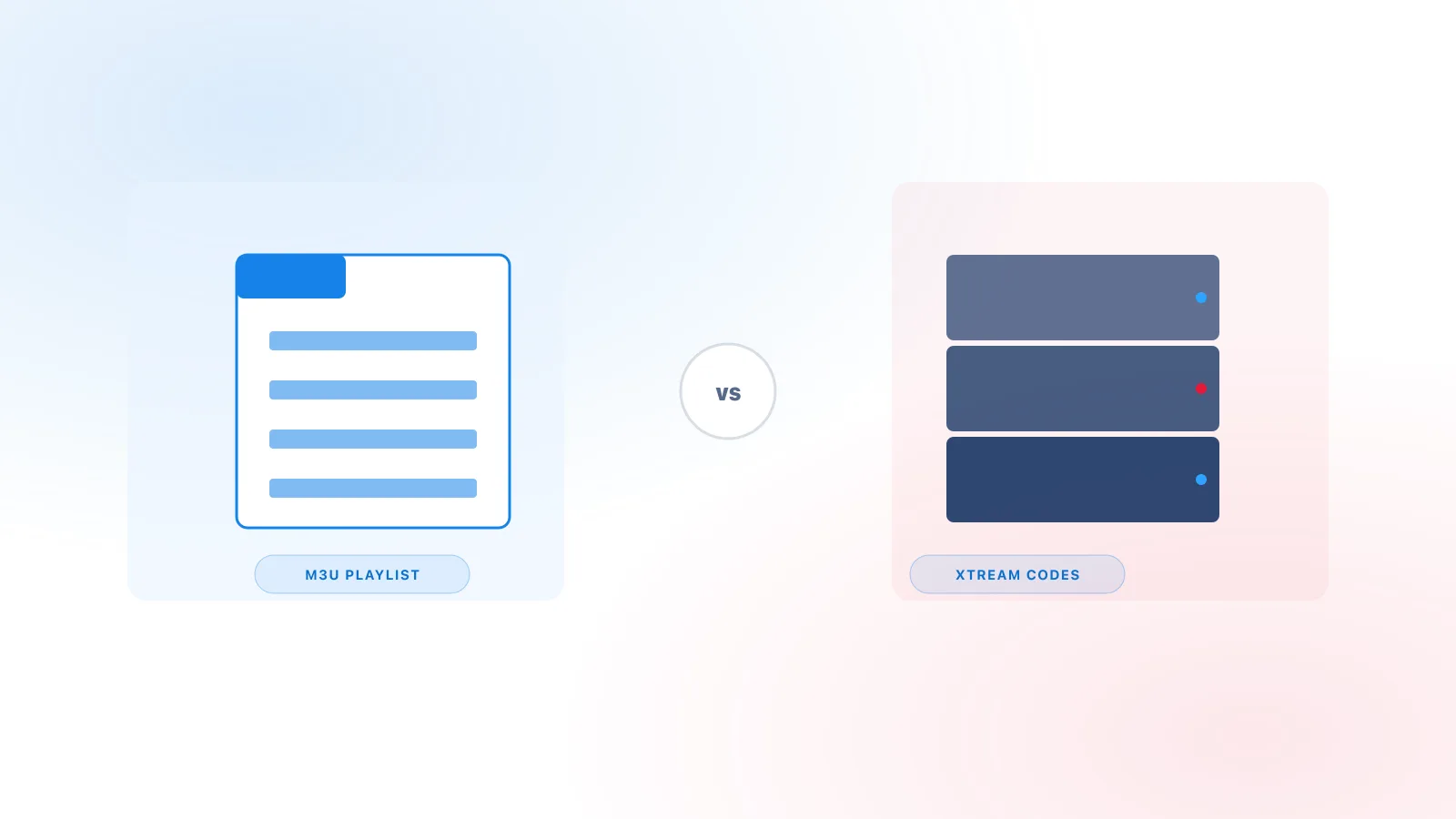
An M3U playlist is a single list that the client downloads. An Xtream Codes login is a server connection that returns structured data. Both are ways to connect a player to a service, and they are not interchangeable in every app. The M3U vs Xtream Codes comparison explains the differences, and the how-to guide for adding an M3U playlist covers the general steps in more detail.
Summary
Kodi's built-in IPTV client reads an M3U playlist and an optional XMLTV guide. Enable the PVR IPTV Simple Client, add your playlist link in its General settings, add a guide link if your provider supplies one, and restart Kodi. If you only have an Xtream Codes login, the client can't use it directly, so ask your provider for a playlist link or use a compatible player that accepts that login format.